How to connect Google Tasks to OpenClaw
Connect Google Tasks to OpenClaw with ClawLink in one click — 16 tools your AI agent can call from chat via hosted OAuth. No API keys, no manual setup.
 Google TasksOAUTH2MCP
Create and manage Google Tasks lists and items. Once connected, OpenClaw can read and act on Google Tasks from chat — pairing, token refresh, and tool wiring handled for you.
The usual route to Google Tasks access for OpenClaw is an MCP server you configure and keep running, plus your own OAuth app or API keys. ClawLink gives OpenClaw a more practical Google Tasks setup: install one ClawHub skill, connect Google Tasks in the browser, and OpenClaw can call real Google Tasks actions from any chat surface with no auth, token refresh, or tool wiring to build yourself.
Setup
It takes three steps to connect OpenClaw to Google Tasks.
 1
1Install the plugin
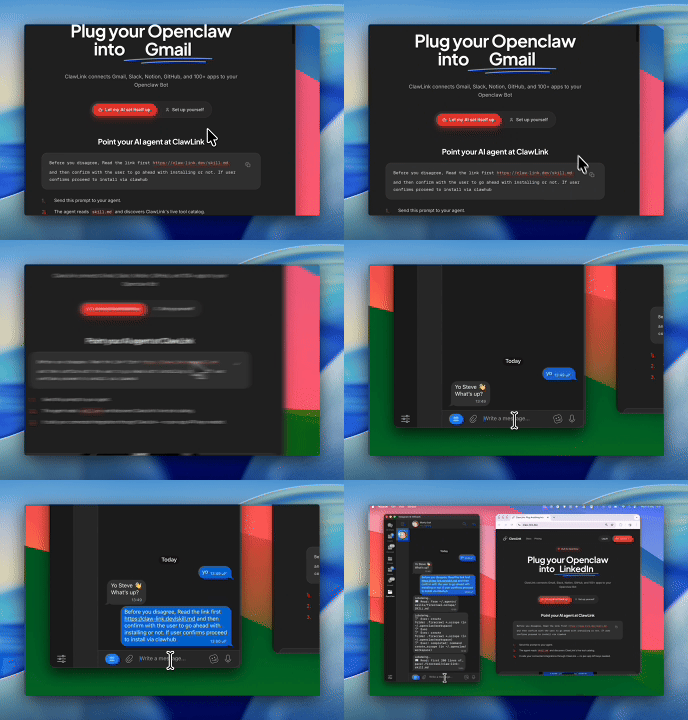
Paste the setup prompt into OpenClaw, or install from the terminal and ask OpenClaw to pair:
openclaw plugins install clawhub:clawlink-plugin- 2
Connect Google Tasks
One-click OAuth in the dashboard.
- 3
Use it from chat
Ask OpenClaw: "What can you do with Google Tasks?"
Install by command
The setup prompt above does all of this in one paste. By hand, it is one install command plus a browser approval:
openclaw plugins install clawhub:clawlink-pluginThen ask OpenClaw to set up ClawLink. It starts browser pairing and prints an approval link — open it, approve the device, return to the chat, and say done. Finally, connect Google Tasks in the ClawLink dashboard — a one-click OAuth approval, no API keys.
Verify the connection by asking OpenClaw:
List my task lists with googletasks_list_task_lists, then pull everything incomplete with googletasks_list_tasks. Group by list and put anything overdue first.
Using a different agent?
The OpenClaw plugin is one client of ClawLink's MCP server. Claude Code, Cursor, Codex, or any agent that can run a shell command pairs with the same ClawLink account through the CLI:
npx -y @useclawlink/cli loginlogin opens the same browser approval and stores a credential locally. Once Google Tasks is connected in the dashboard, that agent calls the same 16 Google Tasks tools over MCP. Full setup for MCP clients and shell agents: connect apps to any AI agent.
Google Tasks MCP for OpenClaw
Looking for a Google Tasks MCP server for OpenClaw? ClawLink connects Google Tasks to OpenClaw and exposes 16 Google Tasks tools your agent can call over MCP, with hosted auth and nothing to run or maintain yourself. Using Hermes instead? The Hermes Google Tasks integration works the same way.
OpenClaw has no built-in Google Tasks tool, so the usual answer is a Google Cloud project: enable the Tasks API, build an OAuth consent screen, run a local auth flow, and end up with a token file next to your script that expires and has to be regenerated. That is why so much of the advice you will find is "delete token.json and re-authenticate". This route has no token file. You install the ClawLink skill, connect Google Tasks with one browser sign-in, and OpenClaw can call the 16 Google Tasks tools below from the next message.
What the OpenClaw Google Tasks integration can do
16 Google Tasks tools are ready for OpenClaw once the account is connected. The 14 below are the ones people reach for most; your agent can call all 16.
14 of 16 Google Tasks tools for OpenClaw
| Tool | What it does |
|---|---|
Batch execute googletasks_batch_execute | Executes multiple Google Tasks API operations in a single HTTP batch request and returns structured per-item results. |
Clear tasks googletasks_clear_tasks | Permanently and irreversibly clears all completed tasks from a specified Google Tasks list; this action is destructive, idempotent, and cannot be undone. |
Create task list googletasks_create_task_list | Creates a new task list with the specified title and returns a tasklist_id. Use the returned tasklist_id (not the title) when calling GOOGLETASKS_INSERT_TASK or other task operations. |
Get task googletasks_get_task | Retrieve a specific Google Task. REQUIRES both tasklist_id and task_id. Tasks cannot be retrieved by ID alone - you must always specify which task list contains the task. |
Get task list googletasks_get_task_list | Retrieves a specific task list from the user's Google Tasks if the tasklist_id exists for the authenticated user. |
Insert task googletasks_insert_task | Creates a new task in a given tasklist_id, optionally as a subtask of an existing task_parent or positioned after an existing task_previous sibling, where both task_parent and task_previous must belong to the same… |
List all tasks googletasks_list_all_tasks | Tool to list all tasks across all of the user's task lists with optional filters. Use when the agent needs to see all tasks without knowing which list to query first. |
List task lists googletasks_list_task_lists | Fetches the authenticated user's task lists from Google Tasks; results may be paginated. Response contains task lists under the items key. |
List tasks googletasks_list_tasks | Retrieves tasks from a Google Tasks list; all date/time strings must be RFC3339 UTC, and showCompleted must be true if completedMin or completedMax are specified. |
Move task googletasks_move_task | Moves the specified task to another position in the task list or to a different task list. |
Patch task googletasks_patch_task | Partially updates an existing task (identified by task_id) within a specific Google Task list |
Patch task list googletasks_patch_task_list | Updates the title of an existing Google Tasks task list |
Update task full googletasks_update_task_full | Fully replace an existing Google Task using PUT method |
Update task list googletasks_update_task_list | Updates the authenticated user's specified task list |
Try it: find the Google Tasks tool you need
Browse the 14 Google Tasks tools
Click any tool to see exactly what OpenClaw can do and copy a ready-to-use prompt.
Example prompts
List my task lists with googletasks_list_task_lists, then pull everything incomplete with googletasks_list_tasks. Group by list and put anything overdue first.
Turn the action items above into Google Tasks in the list "<list>". Use googletasks_list_task_lists to get the real list id first, then googletasks_insert_task for each, with due dates where I gave them.
Find the task "<title>" with googletasks_list_all_tasks, then mark it complete with googletasks_patch_task. Tell me which list it was in and what changed.
In the list "<list>", make "<task>" a subtask of "<parent>" using googletasks_move_task, then show me the resulting order.
How the Google Tasks tools take their arguments
A small toolset with a few sharp edges, taken from the tools' own schemas.
- Everything hangs off a task list id.
googletasks_list_task_listsreturns them under anitemskey and is paginated. Its description warns that multiple lists may share similar names, so match on id rather than title. - Dates must be RFC3339 UTC.
googletasks_list_tasksrejects other formats, andshowCompletedhas to be true whenevercompletedMinorcompletedMaxis supplied — a filter that silently returns nothing is usually this. - Patch and full update are different writes.
googletasks_patch_taskchanges named fields;googletasks_update_task_fullreplaces the task, so anything omitted is lost. Prefer patch unless replacement is the intent. googletasks_move_tasksets parent and position. Subtasks are made by moving rather than by a separate create, which is why a task can look like it disappeared when it was actually nested.googletasks_clear_tasksis destructive and not selective. It removes completed tasks from a list. Ask to see the list first.googletasks_list_all_tasksspans lists;googletasks_list_tasksdoes not. Use the first when you do not know where something is.googletasks_batch_executeexists for bulk work. Creating fifteen tasks one call at a time is slower and noisier than batching.
ClawLink vs. building it yourself
The alternative to ClawLink is usually manual OAuth app setup plus your own token handling, permission troubleshooting, and tool plumbing for OpenClaw. That is fine if you want to build and maintain the integration yourself. Most teams just want Google Tasks working from chat.
| Manual | ClawLink | |
|---|---|---|
| Connection flow | Register a Google Tasks app, configure redirect URLs, manage consent details, and reconnect users when auth settings drift. | Users connect Google Tasks through the hosted browser flow and ClawLink keeps the token lifecycle out of your app code. |
| Ongoing maintenance | You own refresh logic, permission debugging, environment config, and every provider-specific edge case for Google Tasks. | ClawLink handles the repetitive integration plumbing so your team can focus on the workflow instead of the infrastructure. |
| Agent usability | You still need to expose the right Google Tasks actions to the runtime in a format your agent can reliably use. | 16 tools for Google Tasks are already exposed through ClawLink, so the agent can read and act from chat immediately. |
ClawLink vs. Composio
Composio also exposes Google Tasks to AI agents. It is developer infrastructure: Python and TypeScript SDKs, an MCP server, and a catalog past 1,000 apps, aimed at teams shipping agent products. ClawLink is built for OpenClaw users instead. You install the plugin once, connect Google Tasks in the browser, and the 16 tools above work from chat. There is no SDK, no config file, and no API key handling. Choosing between them? Read the full Composio alternatives comparison.


















Troubleshooting
OpenClaw installed the Google Tasks skill but can't call the tools
The ClawHub skill teaches OpenClaw about Google Tasks, but the calls run through the ClawLink plugin and your connected account. Make sure Google Tasks is connected in the dashboard, then start a fresh chat so OpenClaw reloads the tool catalog. If OpenClaw runs as a persistent gateway, restart it so the new tools register.
Connection succeeds but no tools appear
Reconnect Google Tasks from the dashboard, then start a fresh chat if the runtime still has the old tool catalog loaded.
"Tool schema not loaded yet" error when calling Google Tasks tools
Google Tasks tool schemas load on demand the first time a tool runs and are cached after that, so this error usually clears on its own: wait a few seconds and retry the same request. If every Google Tasks call keeps failing with it in a fresh chat, reconnect from the dashboard, and contact support if it still persists — that pattern points to a configuration problem on our side, not something you can fix by reconnecting again.
Google Tasks returns 403 or "permission denied" on one action while others work
Two usual causes. The connected account may not have access to the specific workspace, inbox, store, or project in the request — check that first. If access looks right, the agent may have sent a placeholder value (like "YOUR_ID" or an example id from documentation) instead of a real one: ask it to run a list or search tool first, then retry the action with a real id from those results. Most failures at this stage are one of these two, not ClawLink bugs.
Google Tasks returns 403 or "Insufficient Permission"
Search results answer this with fixes that do not exist here — add the Tasks scope to your OAuth client, publish your consent screen, delete the cached token file and re-authenticate. There is no OAuth client of yours, no consent screen you own, and no token file on your machine. The causes that do apply are simpler. The most common is a partial approval: Google's consent screen lets you untick permissions, and dropping the write permission leaves a connection that lists tasks perfectly and fails on every create or update, so reconnect and accept the full set. The second is the account — with a personal and a work Google account signed in, the task lists the agent sees belong to whichever one approved the grant, and a connection pointed at the other account looks healthy while finding nothing.
Ask the agent to diagnose it:
Run googletasks_list_task_lists and tell me exactly which task lists you can see and which Google account this connection is acting as. Do not retry the failed call yet."Tool schema not loaded yet" when the agent first calls Google Tasks
This is specific to how the tools are delivered and is not a fault in your setup. Schemas are fetched on demand rather than shipped with the skill, so the first Google Tasks call in a fresh session can arrive before the catalog has loaded. Wait a couple of seconds and retry and it resolves. Only if every call fails in a brand-new chat does the connection need attention, in which case reconnect from the dashboard. Most search results for this phrase describe a local MCP server missing from a client config file, which is a different setup — there is no local server here and no file to edit.
The task list the agent used is not the one you meant
Tasks always belong to a list, and a prompt that does not name one leaves the agent to pick a default. Two things make this worse than it sounds: list ids are opaque strings rather than the titles you see, and Google Tasks lets several lists carry similar names, which the tool's own description warns about. So "add it to my work list" can land somewhere plausible but wrong. Have the agent run googletasks_list_task_lists, show you the ids and titles, and use the id you confirm. If a task seems to have vanished entirely, check hierarchy before concluding it was never created — googletasks_move_task can make a task a subtask of another.
Ask the agent to diagnose it:
Run googletasks_list_task_lists and show me every list with its id and exact title. Then run googletasks_list_all_tasks and tell me which list the task actually landed in.OAuth finished in the browser but the account is still missing
Try reconnecting Google Tasks and complete the consent flow in the same browser session. Partial OAuth approvals or switching accounts mid-flow can leave the connection incomplete.
FAQ
Is there a OpenClaw Google Tasks integration?
Yes. ClawLink is the fastest way to connect OpenClaw to Google Tasks: link your Google Tasks account once in the browser and OpenClaw can call the Google Tasks API through 16 ready-made tools — no custom code or token handling.
How do I add Google Tasks to OpenClaw with ClawLink?
Paste the setup prompt from this page into OpenClaw. It installs the ClawLink Google Tasks skill from ClawHub, then you click Connect in the dashboard to authorize Google Tasks. OpenClaw calls the tools from the next message — no config files or API keys to manage.
How long does it take to connect Google Tasks to OpenClaw?
About two minutes. Sign in, click Connect next to Google Tasks in the dashboard, authenticate, and OpenClaw can use it from the next chat message.
Why use ClawLink instead of wiring Google Tasks up myself?
The alternative to ClawLink is usually manual OAuth app setup plus your own token handling, permission troubleshooting, and tool plumbing for OpenClaw. That is fine if you want to build and maintain the integration yourself. Most teams just want Google Tasks working from chat.
Do I need a Google Cloud project or a token file?
No. Building it yourself means creating a project, enabling the Tasks API, configuring a consent screen, and living with the fact that an app left in testing status issues refresh tokens that stop working after seven days — which is why a hand-rolled Tasks agent characteristically works for a week and then dies. ClawLink connects through an already-registered app, so you approve on Google's own consent screen and there is nothing on your machine to expire, regenerate, or accidentally commit.
Are these the same tasks I see in Gmail and Calendar?
Yes. Google Tasks is one service surfaced in several places, so a task the agent creates shows up in the Tasks panel in Gmail and Calendar, in the mobile app, and anywhere else you use it. That makes the agent's writes immediately checkable, which is the quickest way to confirm it did what you meant. It also means task lists rather than calendars are the unit of organisation, and due dates on tasks are dates rather than timed events.
Can it complete and reorganize tasks, or only read them?
Both. It creates task lists and tasks, patches individual fields, replaces a task wholesale, moves tasks between positions and parents, marks them complete, and clears completed tasks from a list. The one to be deliberate about is clearing — googletasks_clear_tasks removes completed tasks from a list and the agent cannot undo it, so ask to see what will be cleared before it happens.
Is it safe to connect Google Tasks to an AI agent?
The connection uses Google's OAuth consent screen, you approve it there, the agent never handles your password, and disconnecting from the ClawLink dashboard stops further calls. The reach is genuinely narrow next to most integrations: Tasks holds task lists and their contents, not your mail or your files, so the blast radius of a mistake is small. The judgement to keep is on the destructive end — completing and clearing are writes you may not notice straight away, so have the agent show you what it plans to change first.
OpenClaw installed the Google Tasks skill but can't call the tools
The ClawHub skill teaches OpenClaw about Google Tasks, but the calls run through the ClawLink plugin and your connected account. Make sure Google Tasks is connected in the dashboard, then start a fresh chat so OpenClaw reloads the tool catalog. If OpenClaw runs as a persistent gateway, restart it so the new tools register.