Help
Plugin installation help
Answers to common questions about installing and using ClawLink with your agent.
Before troubleshooting
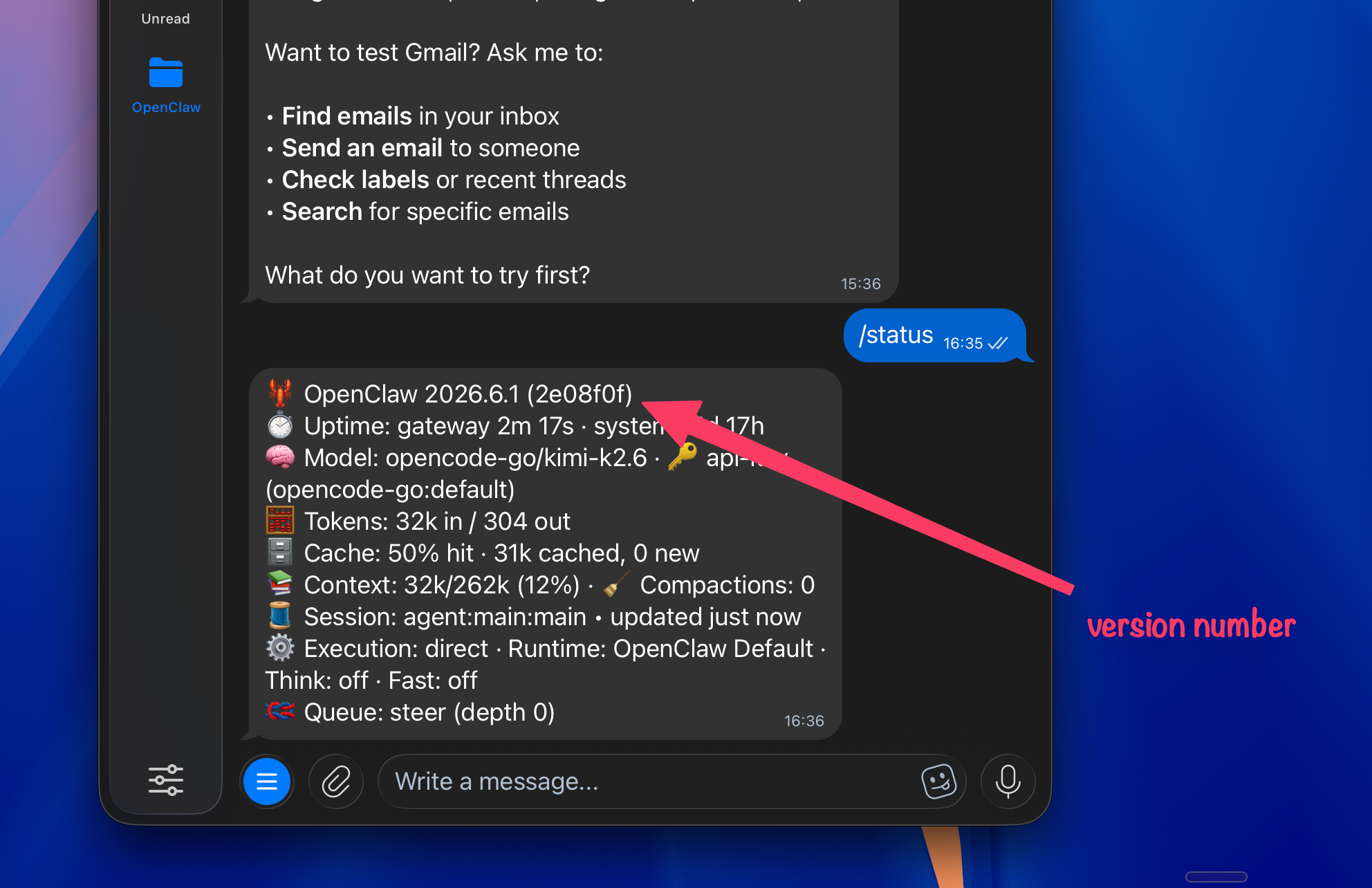
Update OpenClaw and check your version first.
Many plugin issues are fixed in newer OpenClaw releases. Ask your agent to update OpenClaw, then check the version shown in OpenClaw before trying ClawLink again.
- Some models, especially open source models that are not frontier, have a strict built-in security rule that prevents them from visiting external links. Claude and ChatGPT models usually read the ClawHub page and proceed. If your agent refuses, clear the chat with /new and send the ClawHub link directly (https://clawhub.ai/plugins/clawlink-plugin). Starting fresh often bypasses the refusal loop.
- Plugin changes are only recognized after launching a new agent session. Restarting the gateway alone isn't enough. Start a new conversation or chat so the ClawLink tools (clawlink_begin_pairing, clawlink_call_tool, etc.) reload and appear in the agent's available functions.
- The model is confused and mixing up plugin tools with shell commands. Start a fresh session with /new, then ask the agent directly to pair with ClawLink. The pairing process is browser-based, not a CLI command. Don't let the agent divert into gateway diagnostics.
- Two things: (1) pairing must be completed first. Without it, the agent has no active connection. (2) After pairing, explicitly mention ClawLink in your request, for example use Canva through ClawLink or use Gmail through ClawLink. This reminds the agent to route the call via the plugin instead of looking for a native integration tool.
- Paid models that are frontier, like GPT, Claude, Kimi, MiniMax, and GLM, are far better than running models locally on your Mac mini. Try using a model like that and start the ClawLink process again.
Still can't find a solution?
Join our Discord