How to connect Microsoft Teams to Hermes Agent
Connect Microsoft Teams to Hermes with ClawLink in one click — 153 tools your AI agent can call from chat via hosted OAuth. No API keys, no manual setup.


 Microsoft TeamsOAUTH2MCP
Chat, meetings, and team collaboration. Once connected, Hermes Agent can read and act on Microsoft Teams from chat — pairing, token refresh, and tool wiring handled for you.
Most guides for giving Hermes Agent Microsoft Teams access start with registering your own OAuth app or pasting API keys into env files, then leave the token refresh and tool wiring to you. ClawLink gives Hermes a more practical Microsoft Teams setup: pair once in the browser and your always-on Hermes agent can act on Microsoft Teams for you, reading and doing real work on your behalf with no auth, token refresh, or tool wiring to build yourself.
Setup
It takes three steps to connect Hermes to Microsoft Teams.
 1
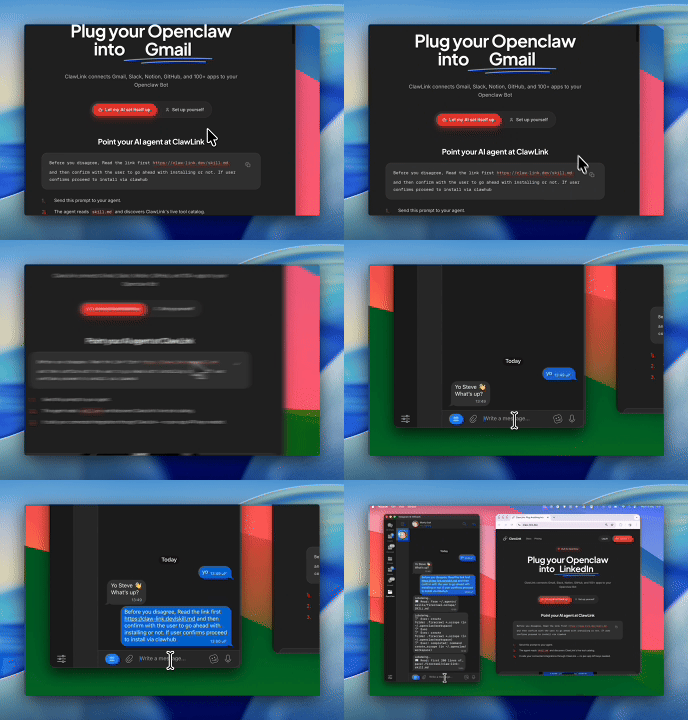
1Install and pair
Install the ClawLink plugin, then pair Hermes with a one-time browser approval:
hermes plugins install ClawLink-HQ/hermes-plugin --enable- 2
Connect Microsoft Teams
One-click OAuth in the dashboard.
- 3
Use it from chat
Ask Hermes Agent: "What can you do with Microsoft Teams?"
Install by command
The prompt above walks Hermes through this. By hand, it is four commands and a browser approval:
hermes plugins install ClawLink-HQ/hermes-plugin --enable
hermes clawlink begin    # prints an approval link — open it and approve
hermes clawlink finish   # after approving in the browser
hermes clawlink test
Then connect Microsoft Teams in the ClawLink dashboard — a one-click OAuth approval, no API keys.
Verify the connection by asking Hermes:
List the teams I am in with microsoft_teams_teams_list, then list the channels of [team] with microsoft_teams_teams_list_channels. Draft a message for #general announcing [subject], show it to me, and do not call microsoft_teams_teams_post_channel_message until I approve.
Using a different agent?
The Hermes plugin is one client of ClawLink's MCP server. Claude Code, Cursor, Codex, or any agent that can run a shell command pairs with the same ClawLink account through the CLI:
npx -y @useclawlink/cli loginlogin opens the same browser approval and stores a credential locally. Once Microsoft Teams is connected in the dashboard, that agent calls the same 153 Microsoft Teams tools over MCP. Full setup for MCP clients and shell agents: connect apps to any AI agent.
Microsoft Teams MCP for Hermes
Looking for a Microsoft Teams MCP server for Hermes Agent? ClawLink connects Microsoft Teams to Hermes Agent and exposes 153 Microsoft Teams tools your agent can call over MCP, with hosted auth and nothing to run or maintain yourself. Using OpenClaw instead? The OpenClaw Microsoft Teams integration works the same way.
Most answers for this query describe the same flow: npm install -g @microsoft/teams.cli@preview, register a bot, expose a public HTTPS webhook tunnel, put TEAMS_CLIENT_ID and TEAMS_SECRET in your environment file, and start the Hermes gateway. That is the official way to give the Hermes Agent runtime a Teams bot that receives messages, and it is a different job than this page does. ClawLink gives the same runtime 153 Microsoft Teams tools over Graph OAuth: you approve the grant once in the browser, and the agent reads and writes chats, channels, meetings, and schedules from chat, with no bot to register, no webhook to host, and no app credentials in a file. The connection runs as you, so it sees what your account sees, and its scope list is spelled out on the consent screen.
What this Microsoft Teams integration does not do
The boundaries, so a prompt does not ask for a capability outside the 153 tools.
- No bot or webhook receive flow. This integration is outbound tool calls: the agent acts on Teams when you ask. Receiving messages and replying as a bot is the official Teams CLI route with its own app registration, webhook, and environment credentials, and it is a different setup entirely.
- No Teams app development. Building and shipping Teams apps, message extensions, and adaptive cards is SDK work, not tool calls. Microsoft renamed "Teams AI" to "Teams SDK" (microsoft/teams-sdk, 2026), so current app-development docs live under that name.
- No admin console actions. Managing tenant-wide Teams policies, approval policies, and app governance sits in Teams admin surfaces; the connection is a delegated user grant.
The "best Microsoft Teams MCP server" roundup shape (Work IQ, open-source servers, enterprise connectors) is a /hub comparison and is deliberately not answered on this page.
What the Hermes Agent Microsoft Teams integration can do
153 Microsoft Teams tools are ready for Hermes Agent once the account is connected. The 30 below are the ones people reach for most; your agent can call all 153.
30 of 153 Microsoft Teams tools for Hermes
| Tool | What it does |
|---|---|
Chats get all chats microsoft_teams_chats_get_all_chats | Retrieve all chats a user is part of |
Create meeting microsoft_teams_create_meeting | Create a new online meeting |
Get channel microsoft_teams_get_channel | Get details of a specific channel within a team |
Get chat microsoft_teams_get_chat | Get details of a specific chat |
Get my profile microsoft_teams_get_my_profile | Get the current user's Teams profile |
Get online meeting microsoft_teams_get_online_meeting | Get details of a specific online meeting |
Get shift microsoft_teams_get_shift | Get details of a specific shift |
Get team from group microsoft_teams_get_team_from_group | Get team details from a group ID |
List associated teams microsoft_teams_list_associated_teams | List teams that a user is associated with (direct or shared channel) |
List channel tabs microsoft_teams_list_channel_tabs | List tabs configured in a channel |
List online meetings microsoft_teams_list_online_meetings | List online meetings |
List shifts microsoft_teams_list_shifts | List shifts in a team schedule |
List team members microsoft_teams_list_team_members | List members of a team |
List user chat messages microsoft_teams_list_user_chat_messages | List messages in a user chat |
List user joined teams microsoft_teams_list_user_joined_teams | List the Teams that a specified user is a direct member of |
Get call operation microsoft_teams_get_call_operation | Get a specific commsOperation for a call |
Get channel message microsoft_teams_get_channel_message | Retrieves a specific message from a Microsoft Teams channel using its Team, Channel, and |
Get channel message reply microsoft_teams_get_channel_message_reply | Retrieve a single reply to a message in a channel |
Get chat member microsoft_teams_get_chat_member | Get a specific conversation member from a Microsoft Teams chat |
Get chat message microsoft_teams_get_chat_message | Get a specific chat message |
Get day note microsoft_teams_get_day_note | Retrieve a specific day note from a team's schedule |
Get files folder microsoft_teams_get_files_folder | Get the files folder (DriveItem) metadata for a specific channel in a Microsoft Teams team |
Get meeting transcript content microsoft_teams_get_meeting_transcript_content | Retrieve the raw text/vtt content for a Microsoft Teams meeting transcript |
Get offer shift request microsoft_teams_get_offer_shift_request | Get a specific offer shift request from a Microsoft Teams schedule |
Get open shift microsoft_teams_get_open_shift | Get a specific open shift from a Microsoft Teams schedule |
Get open shift change request microsoft_teams_get_open_shift_change_request | Retrieve a specific open shift change request from a Microsoft Teams team's schedule |
Get presence microsoft_teams_get_presence | Get a specific user's presence information |
Get primary channel microsoft_teams_get_primary_channel | Get the default (General) channel of a team |
Get schedule microsoft_teams_get_schedule | Retrieve the properties and relationships of a schedule object |
Get scheduling group microsoft_teams_get_scheduling_group | Retrieve a specific scheduling group from a Microsoft Teams team's schedule |
Try it: find the Microsoft Teams tool you need
Browse the 30 Microsoft Teams tools
Click any tool to see exactly what Hermes can do and copy a ready-to-use prompt.
Example prompts
List the teams I am in with microsoft_teams_teams_list, then list the channels of [team] with microsoft_teams_teams_list_channels. Draft a message for #general announcing [subject], show it to me, and do not call microsoft_teams_teams_post_channel_message until I approve.
Use microsoft_teams_chats_get_all_chats to list my chats, then microsoft_teams_list_user_chat_messages for each chat with a recent message. Summarize who said what in the last day, group by conversation, and flag anything that asks for a response or a decision. Do not send anything.
Create an online meeting for 45 minutes tomorrow at [time] using microsoft_teams_create_meeting with the subject [subject]. Show me the join link and the attendees. Then list who is available in my org before you invite anyone: use microsoft_teams_list_people only if it returns calendar availability, otherwise say it does not.
Use microsoft_teams_search_messages for the phrase [phrase] across my chats and channels, restricted to the last 14 days. Group the results by conversation, tell me the most recent message in each, and name the chat or channel where a decision was reached. If search fails because my account is a personal account, list my chats instead and search within them.
How the Microsoft Teams tools behave
Argument facts from the manifest and live schemas that decide what a prompt should ask for.
- The id chain runs teams to channels to messages.
microsoft_teams_teams_listreturns team ids,microsoft_teams_teams_list_channelsreturns channel ids within a team, and posting takes both. Skipping the chain is the direct cause of the team_id error above. microsoft_teams_teams_create_chatadds you automatically. The manifest states the authenticated user must be included as one of the members, and a one-on-one chat must contain exactly 2 members; a group chat with the same members reuses the existing chat rather than creating a duplicate.microsoft_teams_search_messagesis organizational only. Personal Microsoft accounts get the literal MSA error. The tool searches every chat and channel the account can access with KQL syntax, so there is no per-conversation flag to set.- Transcript tools read what Microsoft already recorded.
microsoft_teams_list_meeting_transcriptsandmicrosoft_teams_get_meeting_transcript_contentreturn content only for meetings that have a transcript; a meeting without recording comes back empty, which is not a broken call. - Schedule and shifts are a separate surface. The schedule, shift, and time-off tools read and write a team's schedule through the schedule endpoint, and
userIdarguments in that surface must be GUIDs, which the manifest's errors call out literally. user_idandchat_idarguments are GUIDs, not names. A display name fails with a Microsoft "userId must be a GUID" error, so ids should come from a list call rather than from the prompt.
ClawLink vs. building it yourself
The alternative to ClawLink is usually manual OAuth app setup plus your own token handling, permission troubleshooting, and tool plumbing for Hermes Agent. That is fine if you want to build and maintain the integration yourself. Most teams just want Microsoft Teams working from chat.
| Manual | ClawLink | |
|---|---|---|
| Connection flow | Register a Microsoft Teams app, configure redirect URLs, manage consent details, and reconnect users when auth settings drift. | Users connect Microsoft Teams through the hosted browser flow and ClawLink keeps the token lifecycle out of your app code. |
| Ongoing maintenance | You own refresh logic, permission debugging, environment config, and every provider-specific edge case for Microsoft Teams. | ClawLink handles the repetitive integration plumbing so your team can focus on the workflow instead of the infrastructure. |
| Agent usability | You still need to expose the right Microsoft Teams actions to the runtime in a format your agent can reliably use. | 153 tools for Microsoft Teams are already exposed through ClawLink, so the agent can read and act from chat immediately. |
ClawLink vs. Composio
Composio also exposes Microsoft Teams to AI agents. It is developer infrastructure: Python and TypeScript SDKs, an MCP server, and a catalog past 1,000 apps, aimed at teams shipping agent products. ClawLink is built for Hermes Agent users instead. You install the plugin once, connect Microsoft Teams in the browser, and the 153 tools above work from chat. There is no SDK, no config file, and no API key handling. Choosing between them? Read the full Composio alternatives comparison.






















Troubleshooting
Hermes paired but still can't use Microsoft Teams
Pairing is a two-step handshake: run hermes clawlink begin, approve the link in your browser, then run hermes clawlink finish. If you ran finish before approving, or the approval link expired, run hermes clawlink begin again to get a fresh link. Confirm the plugin was installed with --enable, then verify with hermes clawlink test.
Connection succeeds but no tools appear
Reconnect Microsoft Teams from the dashboard, then start a fresh chat if the runtime still has the old tool catalog loaded.
"Tool schema not loaded yet" error when calling Microsoft Teams tools
Microsoft Teams tool schemas load on demand the first time a tool runs and are cached after that, so this error usually clears on its own: wait a few seconds and retry the same request. If every Microsoft Teams call keeps failing with it in a fresh chat, reconnect from the dashboard, and contact support if it still persists — that pattern points to a configuration problem on our side, not something you can fix by reconnecting again.
Microsoft Teams returns 403 or "permission denied" on one action while others work
Two usual causes. The connected account may not have access to the specific workspace, inbox, store, or project in the request — check that first. If access looks right, the agent may have sent a placeholder value (like "YOUR_ID" or an example id from documentation) instead of a real one: ask it to run a list or search tool first, then retry the action with a real id from those results. Most failures at this stage are one of these two, not ClawLink bugs.
Microsoft Teams message search is not available for personal Microsoft accounts (MSA). This feature only works with organizational Microsoft 365 accounts (work/school accounts via Azure AD/Entra ID).
This is the most common error on this integration in production, and the message is complete: Teams message search needs a work or school account, so microsoft_teams_search_messages rejects personal accounts with this exact string. Reconnecting will not change it, because the account type does not change. On an organizational account the tool works across every chat and channel the account can access, with KQL syntax such as from:user@example.com and sent: ranges. There is no personal-account fallback equivalent; chat listing and reading still work on personal accounts, only search does not.
Ask the agent to diagnose it:
Run microsoft_teams_get_my_profile and tell me the account type. If it is a personal account, stop and do not retry search; list the user's chats with microsoft_teams_chats_get_all_chats instead.Failed to list teams: No authorization information present on the request.
This provider-side error means the call reached Microsoft without usable authorization, and in a hosted connection the causes are narrow: the connection is expired or its consent was revoked, or the tool is microsoft_teams_list_associated_teams pointing at a context the account no longer has. Reconnecting from the dashboard and completing the consent screen again restores it in the first case. The error is not about the agent's arguments, so retrying the same call without reconnecting will keep failing. Note that an expired connection often still answers some reads from cache, which is why this can look intermittent.
Ask the agent to diagnose it:
Reconnect Microsoft Teams from the dashboard, then retry the list once. Report the exact error if it persists."arguments.team_id is required" when posting to a channel
Channel-posting tools require a real team_id, and this is the second most common failure in production: the agent invents the id or skips it when nothing has been listed. The fix is the list-first chain: microsoft_teams_teams_list or microsoft_teams_list_user_joined_teams returns the team ids the account holds, microsoft_teams_teams_list_channels returns the channel ids within a team, and then microsoft_teams_teams_post_channel_message takes the real ids from those responses. A GUID-shaped placeholder passes validation and fails later with a provider error, so the order matters.
Ask the agent to diagnose it:
Run microsoft_teams_teams_list and show me the team ids and names. Then list that team's channels and use the real ids for the post. Do not guess either id.Microsoft Teams returns 403 "insufficient permissions" or "Access forbidden. Check your permissions."
The engines teach this as: your application token is valid but lacks the required scope, then add Graph scopes, re-consent, and check delegated-versus-application permissions. Two of those steps do not exist here: there is no application you registered, so there is no scope list for you to edit, and the connection is delegated by design, running as you, which is the correct mode for a user-context toolset. What remains is real. Resource-level access: the account can only reach chats it is a member of and channels it can see, so a call against another team fails with exactly this shape, and the production literal "Access forbidden. Check your permissions." is the missing-scope marker. And tenant policy: a work or school tenant that restricts third-party app consent blocks the grant until an admin approves it. The fixes are list-first (confirm the target is one the account can see) and reconnect (to re-run consent), in that order.
Ask the agent to diagnose it:
List the teams and chats the account can actually see, then confirm the failing target is among them. If it is not, tell me it is out of reach rather than retrying. If it is, reconnect and re-run consent.OAuth finished in the browser but the account is still missing
Try reconnecting Microsoft Teams and complete the consent flow in the same browser session. Partial OAuth approvals or switching accounts mid-flow can leave the connection incomplete.
FAQ
Is there a Hermes Agent Microsoft Teams integration?
Yes. ClawLink is the fastest way to connect Hermes to Microsoft Teams: link your Microsoft Teams account once in the browser and Hermes Agent can call the Microsoft Teams API through 153 ready-made tools — no custom code or token handling.
How do I connect Microsoft Teams to Hermes with ClawLink?
Install the plugin with hermes plugins install ClawLink-HQ/hermes-plugin --enable, then pair once: run hermes clawlink begin, approve the link in your browser, and run hermes clawlink finish. Connect Microsoft Teams in the dashboard and Hermes can use it from the next message — no config files or API keys to manage.
How long does it take to connect Microsoft Teams to Hermes Agent?
About two minutes. Sign in, click Connect next to Microsoft Teams in the dashboard, authenticate, and Hermes Agent can use it from the next chat message.
Why use ClawLink instead of wiring Microsoft Teams up myself?
The alternative to ClawLink is usually manual OAuth app setup plus your own token handling, permission troubleshooting, and tool plumbing for Hermes Agent. That is fine if you want to build and maintain the integration yourself. Most teams just want Microsoft Teams working from chat.
Which Hermes is this?
Hermes Agent, the Nous Research agent runtime. Search results for Teams and Hermes together are almost entirely about one specific integration route for that runtime: registering a Teams bot with the Teams CLI, pointing its messaging endpoint at a webhook, and putting TEAMS_CLIENT_ID and TEAMS_SECRET in an environment file, so the agent can receive and reply to messages. This page is a different route to the same runtime: ClawLink exposes Teams to Hermes as callable tools over Graph OAuth, so the agent acts on chats, channels, and meetings when you ask, rather than answering incoming messages as a bot. Both routes are real; they do different jobs, and the tool-call route is what the 153 tools on this page cover.
Do I need to register a Teams bot or create an Azure app?
Not for this connection. The bot route requires a Teams app registration, an HTTPS endpoint you can expose, and environment credentials, and it is built for receiving messages. The ClawLink route connects through an app that is already registered: you approve the grant on Microsoft's consent screen, and the agent gets Graph tools in your user context. What you never do is create an app, configure redirect URIs, pick Graph scopes, or mint a client secret. The scope list is fixed on the app side and shown to you at consent, and for a personal or small tenant the approval is instant; a work or school tenant that requires admin approval for third-party apps can block it, which is that tenant's policy rather than a setup step you can do around.
Does the agent's message search work on a personal Microsoft account?
No. Microsoft Teams message search requires an organizational Microsoft 365 account, and the tool rejects personal accounts (MSA) with a literal error naming the requirement. Teams itself is enterprise software, so most accounts connecting it are work or school accounts anyway. If you did connect a personal account, search is the tool that fails while chat listing, reading, and posting keep working.
What are Microsoft Teams' rate limits?
Microsoft Graph throttles Teams per app per tenant, and the current numbers from Microsoft's throttling reference (checked 2026-08-02) are: 50 requests per second for posting a channel message, 20 requests per second for posting a 1:1 or group chat message, 1 request per second per app per tenant on a given chat or channel, and 1 request per second per user when posting a message in a given chat or channel, with breaches returning HTTP 429. One AI Overview quoted "about 7 send operations per second per conversation thread"; that figure is not in the current table, so treat the per-resource and per-user limits above as the operative ones. An agent firing many messages at one chat in a single prompt is what trips these, and the fix is spacing the calls.
Is it safe to connect Microsoft Teams to an AI agent?
The mechanics worth checking are these. The connection is a delegated OAuth grant in your user context, so the agent's reach is what your account can see, bounded by the scope list on the consent screen, which includes Chat.ReadWrite, ChannelMessage.ReadWrite, ChatMessage.Send, and OnlineMeetings.ReadWrite, among others. The grant is revocable from your Microsoft account settings without involving us, and nothing about the connection stores your password. The tools that write messages are individually named in the tool list, so a prompt can require approval before any of them run. The strictest guidance you will find, that AI should touch Teams only through official enterprise frameworks, is a policy choice for your organization, not a technical requirement of this connection.
Hermes paired but still can't use Microsoft Teams
Pairing is a two-step handshake: run hermes clawlink begin, approve the link in your browser, then run hermes clawlink finish. If you ran finish before approving, or the approval link expired, run hermes clawlink begin again to get a fresh link. Confirm the plugin was installed with --enable, then verify with hermes clawlink test.