How to connect SharePoint to OpenClaw
Connect SharePoint to OpenClaw with ClawLink in one click — 86 tools your AI agent can call from chat via hosted OAuth. No API keys, no manual setup.


 SharePointOAUTH2MCP
Browse sites, lists, and files in SharePoint. Once connected, OpenClaw can read and act on SharePoint from chat — pairing, token refresh, and tool wiring handled for you.
The usual route to SharePoint access for OpenClaw is an MCP server you configure and keep running, plus your own OAuth app or API keys. ClawLink gives OpenClaw a more practical SharePoint setup: install one ClawHub skill, connect SharePoint in the browser, and OpenClaw can call real SharePoint actions from any chat surface with no auth, token refresh, or tool wiring to build yourself.
Setup
It takes three steps to connect OpenClaw to SharePoint.
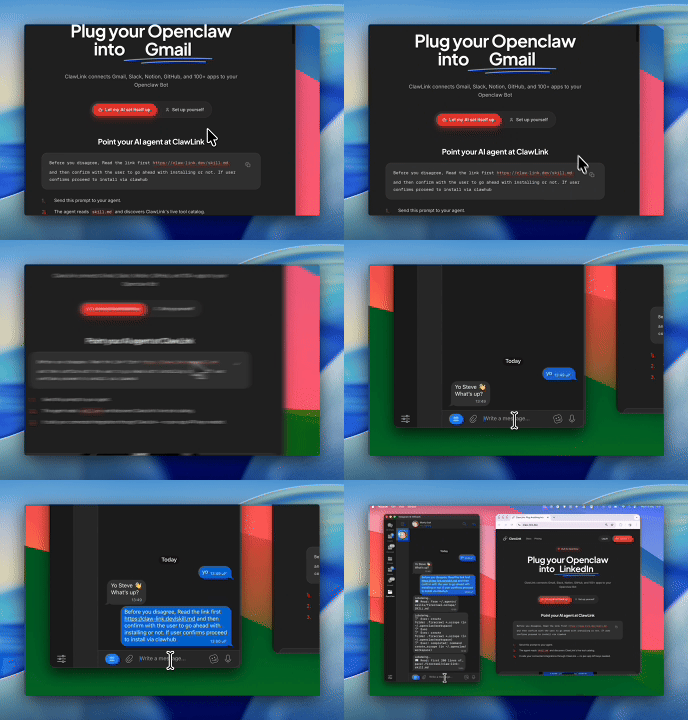 1
1Install the plugin
Paste the setup prompt into OpenClaw, or install from the terminal and ask OpenClaw to pair:
openclaw plugins install clawhub:clawlink-plugin- 2
Connect SharePoint
One-click OAuth in the dashboard.
- 3
Use it from chat
Ask OpenClaw: "What can you do with SharePoint?"
The install, start to finish. Run these once, then connect SharePoint in the dashboard:
openclaw plugins install clawhub:clawlink-plugin
openclaw skills install @hith3sh/sharepoint-sites
Start a fresh chat afterwards so OpenClaw reloads its tool catalog, then ask it to run clawlink_list_integrations to confirm SharePoint is connected.
Using a different agent?
The OpenClaw plugin is one client of ClawLink's MCP server. Claude Code, Cursor, Codex, or any agent that can run a shell command pairs with the same ClawLink account through the CLI:
npx -y @useclawlink/cli loginlogin opens the same browser approval and stores a credential locally. Once SharePoint is connected in the dashboard, that agent calls the same 86 SharePoint tools over MCP. Full setup for MCP clients and shell agents: connect apps to any AI agent.
SharePoint MCP for OpenClaw
Looking for a SharePoint MCP server for OpenClaw? ClawLink connects SharePoint to OpenClaw and exposes 86 SharePoint tools your agent can call over MCP, with hosted auth and nothing to run or maintain yourself. Using Hermes instead? The Hermes SharePoint integration works the same way.
ClawLink connects OpenClaw to SharePoint with hosted OAuth: you never register an Entra app and no admin consent flow is involved. Every guide to giving an agent SharePoint access otherwise starts the same way: register an app in Azure, pick Graph permissions, grant admin consent, then handle the token refresh yourself. ClawLink removes that first half. You sign in with your normal Microsoft 365 account through a hosted OAuth flow, and the agent calls SharePoint tools from chat. The catch is the same one SharePoint has everywhere: the agent can only see what your account can see, and if a site or library is not shared with you, tools on it fail with an access-denied error no matter which service you use.
Is it safe to connect SharePoint to OpenClaw?
SharePoint is a work account in a tenant controlled by your IT team, so the safety questions are different from a personal account. Here is the specific version.
- The agent acts as you, with your permissions. The connection is delegated: tools run as the Microsoft 365 account that signed in, with exactly the access that account has in the tenant. No separate admin rights, no elevated service account, and no way around SharePoint's own permission model — search results and lists are security-trimmed to what you can already see.
- There is no admin consent screen. The self-hosted route needs an Entra app with admin-consented permissions, which is why those guides start with "ask your IT department". Our hosted client signs in like a normal app. In tenants that restrict user consent, an admin may still need to approve the app once; the connection then works for the approved account.
- What the connection can reach. The grant is the full set of SharePoint permissions on the app registration (Microsoft's
.defaultscope), which is what read and write tools need. It is not a read-only grant, and it is not limited to one site. Writes — creating folders, uploading files, changing permissions — require your confirmation before they run, and everything appears in Microsoft 365 audit logs as your account. - Revoking it is instant. Remove the app from your account or ask your admin to revoke it in Azure; the token stops working and the agent's SharePoint calls fail until the connection is removed or reconnected.
The genuinely risky setups are the self-hosted ones that store a client secret or certificate on a machine you may not control and connect with app-only FullControl over the whole tenant. Delegated user access is the narrower and more auditable of the two.
What the OpenClaw SharePoint integration can do
86 SharePoint tools are ready for OpenClaw once the account is connected. The 30 below are the ones people reach for most; your agent can call all 86.
30 of 86 SharePoint tools for OpenClaw
| Tool | What it does |
|---|---|
Share point add attachment to list item share_point_add_attachment_to_list_item | Tool to add an attachment to a SharePoint list item. Use when you need to upload a binary file as an attachment to a specified list item. |
Share point add field link to content type share_point_add_field_link_to_content_type | Tool to add a field link to a list content type. Use when you want to associate an existing list field with a content type. |
Share point add role assignment to item share_point_add_role_assignment_to_item | Tool to add a role assignment to a list item. Use when granting specific permissions to a user or group after breaking inheritance if needed. |
Share point add role assignment to list share_point_add_role_assignment_to_list | Tool to add a role assignment to a SharePoint list. |
Share point break role inheritance on item share_point_break_role_inheritance_on_item | Tool to break permission inheritance on a list item. |
Share point break role inheritance on list share_point_break_role_inheritance_on_list | Breaks permission inheritance on a SharePoint list, allowing you to set unique permissions. |
Share point check in file share_point_check_in_file | Tool to check in a file. Use after uploading or editing a document and you're ready to finalize changes. |
Share point create content type share_point_create_content_type | Tool to create a new content type in SharePoint. Use when you need to define a custom content type with specific metadata structure for lists or libraries. |
Share point create drive item sharing link share_point_create_drive_item_sharing_link | Tool to create a sharing link for a drive item in SharePoint or OneDrive. |
Share point create list field share_point_create_list_field | Tool to create a new field (column) in a SharePoint list. Use when you need to programmatically add a column after confirming the list GUID. |
Share point create list item by ID share_point_create_list_item_by_id | Tool to create a new item in a SharePoint list using the list's GUID. Use when you have the list GUID rather than the list title. |
Share point create list item in folder share_point_create_list_item_in_folder | Tool to create a list item in a specific folder within a SharePoint list. IMPORTANT: This action works ONLY with SharePoint lists (not document libraries). |
Share point download file by server relative URL share_point_download_file_by_server_relative_url | Download a file by server-relative URL |
Share point get all folders share_point_get_all_folders | Retrieve all folders in the SharePoint web |
Share point get changes share_point_get_changes | Retrieve changes from SharePoint list change log |
Share point get content type share_point_get_content_type | Retrieve a single SharePoint content type by its ID |
Share point get content types share_point_get_content_types | Retrieves all content types from the current SharePoint site |
Share point get content types for list share_point_get_content_types_for_list | Retrieve all content types for a specific SharePoint list by GUID |
Share point get context info share_point_get_context_info | Retrieve SharePoint context information including the form digest value |
Share point get current user share_point_get_current_user | Retrieve the current user for the site |
Share point get drive item analytics share_point_get_drive_item_analytics | Get analytics for a SharePoint drive item |
Share point get group users share_point_get_group_users | Retrieves all users who are members of a specified SharePoint group |
Share point get group users by ID share_point_get_group_users_by_id | Retrieve all users in a specific SharePoint site group by group ID |
Share point get item attachment content share_point_get_item_attachment_content | Download an attachment from a SharePoint list item |
Share point get list by guid share_point_get_list_by_guid | Retrieve a SharePoint list by its GUID |
Share point get list by title share_point_get_list_by_title | Retrieve a SharePoint list by its title |
Share point get list content type by ID share_point_get_list_content_type_by_id | Retrieve a specific content type from a SharePoint list by its ID |
Share point get list item by ID share_point_get_list_item_by_id | Retrieve a SharePoint list item by ID |
Share point get list item version share_point_get_list_item_version | Retrieve a specific version of a SharePoint list item |
Share point get list items share_point_get_list_items | Retrieve items from a SharePoint list |
Try it: find the SharePoint tool you need
Browse the 30 SharePoint tools
Click any tool to see exactly what OpenClaw can do and copy a ready-to-use prompt.
Example prompts
Search SharePoint for 'quarterly report' restricted to Word documents (share_point_search_query with querytext
FileType:docx), list the top 5 results with their web URLs, then summarize the newest one.
Use share_point_get_list_items on the list titled 'Projects' and show the Title and Status of each item. If the title does not match, list all lists first with share_point_list_all_lists and use the exact title.
Upload the file report-q2.docx to the folder /Shared Documents/Reports using share_point_upload_file, overwriting the existing file if there is one.
Create a new item in the 'Tasks' list with Title 'Complete Q4 report' and Status 'Active' using share_point_sharepoint_create_list_item. Confirm the list title with share_point_list_all_lists first.
What to tell the agent when it calls SharePoint
These are the argument rules the SharePoint tools actually run with, checked against the live schemas. The first two cause most of the failed calls in production logs.
list_titlemust match the list's real title exactly, and titles are localized per site — 'Documents' can be 'Dokumente' on a German site. When a lookup fails with "List 'X' does not exist", have the agent resolve the list GUID first via share_point_get_list_by_guid instead of guessing the title.share_point_get_list_itemsaccepts real OData:filter(e.g.Title eq 'Test'),select(Title,Idor*),orderby(Created desc),expand(Author,Editor), andtopfor paging withskiptoken.share_point_search_queryuses Keyword Query Language (KQL), not plain words:IsDocument:1,FileType:docx,Author:"Jane Doe", plusrefinementfilterslikeFileType:equals("docx").rowlimitcaps at 500. Results are security-trimmed — content you cannot access never appears.share_point_list_drive_childrenneeds the document library's drive GUID (drive_id), which the agent should look up with share_point_list_drives_rest_api. The library name alone is not accepted.share_point_create_list_item_by_idadditionally requiresmetadata_typein the formSP.Data.\{ListName\}ListItem— for a Tasks list that isSP.Data.TasksListItem. The plain create tool (share_point_sharepoint_create_list_item) needs onlylist_nameanditem_propertieswith internal column names.share_point_upload_filetakesfolder_relative_urlstarting with/—/Shared Documents, neverShared Documents— andoverwritedefaults to true.share_point_download_file_by_server_relative_urlhas the same leading-slash rule.site_namescopes a single call to a subsite (e.g.marketing); omitted, calls hit the tenant's root site. The connection itself is per-tenant, not per-site.
ClawLink vs. building it yourself
The alternative to ClawLink is usually manual OAuth app setup plus your own token handling, permission troubleshooting, and tool plumbing for OpenClaw. That is fine if you want to build and maintain the integration yourself. Most teams just want SharePoint working from chat.
| Manual | ClawLink | |
|---|---|---|
| Connection flow | Register a SharePoint app, configure redirect URLs, manage consent details, and reconnect users when auth settings drift. | Users connect SharePoint through the hosted browser flow and ClawLink keeps the token lifecycle out of your app code. |
| Ongoing maintenance | You own refresh logic, permission debugging, environment config, and every provider-specific edge case for SharePoint. | ClawLink handles the repetitive integration plumbing so your team can focus on the workflow instead of the infrastructure. |
| Agent usability | You still need to expose the right SharePoint actions to the runtime in a format your agent can reliably use. | 86 tools for SharePoint are already exposed through ClawLink, so the agent can read and act from chat immediately. |
ClawLink vs. Composio
Composio also exposes SharePoint to AI agents. It is developer infrastructure: Python and TypeScript SDKs, an MCP server, and a catalog past 1,000 apps, aimed at teams shipping agent products. ClawLink is built for OpenClaw users instead. You install the plugin once, connect SharePoint in the browser, and the 86 tools above work from chat. There is no SDK, no config file, and no API key handling. Choosing between them? Read the full Composio alternatives comparison.

























Troubleshooting
OpenClaw installed the SharePoint skill but can't call the tools
The ClawHub skill teaches OpenClaw about SharePoint, but the calls run through the ClawLink plugin and your connected account. Make sure SharePoint is connected in the dashboard, then start a fresh chat so OpenClaw reloads the tool catalog. If OpenClaw runs as a persistent gateway, restart it so the new tools register.
Connection succeeds but no tools appear
Reconnect SharePoint from the dashboard, then start a fresh chat if the runtime still has the old tool catalog loaded.
"Tool schema not loaded yet" error when calling SharePoint tools
SharePoint tool schemas load on demand the first time a tool runs and are cached after that, so this error usually clears on its own: wait a few seconds and retry the same request. If every SharePoint call keeps failing with it in a fresh chat, reconnect from the dashboard, and contact support if it still persists — that pattern points to a configuration problem on our side, not something you can fix by reconnecting again.
SharePoint returns 403 or "permission denied" on one action while others work
Two usual causes. The connected account may not have access to the specific workspace, inbox, store, or project in the request — check that first. If access looks right, the agent may have sent a placeholder value (like "YOUR_ID" or an example id from documentation) instead of a real one: ask it to run a list or search tool first, then retry the action with a real id from those results. Most failures at this stage are one of these two, not ClawLink bugs.
"Attempted to perform an unauthorized operation." (403) on SharePoint calls
The single most common SharePoint failure in production logs (the full error is a 403 with System.UnauthorizedAccessException and this message, sometimes in the tenant's own language). Two causes, in order of likelihood. First, the connected account does not have access to that specific site, list, or library — SharePoint does not tell you which one, so ask the agent to list the sites it can see with share_point_list_sites and confirm the target is among them. Second, the connection is stale: if every SharePoint call fails this way, reconnect the integration from the dashboard.
Ask the agent to diagnose it:
Run clawlink_list_integrations and report SharePoint's status, then run share_point_list_sites and list what it returns. Do not retry the failing call first."Failed to create folder: Access denied."
The most frequent missing-scope error in the logs. Creating a folder is a write that needs the account to have edit permission on the destination library, and some tenants block folder creation by policy even for site owners. Check the account has edit access to that library in the browser first. If it does and the error persists, the tenant's permissions on the app may need an admin to approve them — reconnect and if the same call fails again, raise it with your IT team with this exact error string.
"List 'Site Pages' does not exist at site with URL ..."
This is a real SharePoint API error, and it usually means the agent asked for a list by a title that does not match anything on the site — the actual list may be named differently or live on a different site. SharePoint titles are exact and localized. Tell the agent to run share_point_list_all_lists (or share_point_get_list_by_guid) and use the real title or GUID from the results instead of the name it guessed.
"Server relative urls must start with SPWeb.ServerRelativeUrl"
The path arguments on the file and folder tools — folder_relative_url, server_relative_url — must start with a leading slash: /Shared Documents/Reports, not Shared Documents/Reports. This is the second most common argument error in the logs. Have the agent copy the path from share_point_list_drives_rest_api or share_point_list_files_in_folder results.
"Connection N needs to be reconnected before ... can run."
ClawLink's own re-auth message: the SharePoint token could not be refreshed, usually because access was revoked in Microsoft, a password change invalidated it, or the tenant requires re-consent. Reconnect SharePoint from the dashboard (one click, same sign-in flow) and the tools work again in the same chat. It is not a code or permission problem in your agent setup.
Ask the agent to diagnose it:
Tell me to reconnect SharePoint from the ClawLink dashboard. After I confirm, run clawlink_list_integrations and show me the status before retrying the call."arguments.list_title is required"
The agent called a list tool without the required list_title argument. The fix is not to guess the value — it is to have the agent run share_point_list_all_lists first and pass the exact title from the results. The same pattern applies to drive_id on share_point_list_drive_children and folder_relative_url on the file tools.
OAuth finished in the browser but the account is still missing
Try reconnecting SharePoint and complete the consent flow in the same browser session. Partial OAuth approvals or switching accounts mid-flow can leave the connection incomplete.
FAQ
Is there a OpenClaw SharePoint integration?
Yes. ClawLink is the fastest way to connect OpenClaw to SharePoint: link your SharePoint account once in the browser and OpenClaw can call the SharePoint API through 86 ready-made tools — no custom code or token handling.
How do I add SharePoint to OpenClaw with ClawLink?
Paste the setup prompt from this page into OpenClaw. It installs the ClawLink SharePoint skill from ClawHub, then you click Connect in the dashboard to authorize SharePoint. OpenClaw calls the tools from the next message — no config files or API keys to manage.
How long does it take to connect SharePoint to OpenClaw?
About two minutes. Sign in, click Connect next to SharePoint in the dashboard, authenticate, and OpenClaw can use it from the next chat message.
Why use ClawLink instead of wiring SharePoint up myself?
The alternative to ClawLink is usually manual OAuth app setup plus your own token handling, permission troubleshooting, and tool plumbing for OpenClaw. That is fine if you want to build and maintain the integration yourself. Most teams just want SharePoint working from chat.
Does connecting SharePoint to OpenClaw need an Azure app registration?
Not with ClawLink. The self-hosted route — a SharePoint MCP server or an OpenClaw skill — always starts with registering an application in Microsoft Entra (Azure AD), selecting Graph or SharePoint permissions, and in most tenants granting admin consent before anything works. ClawLink uses a Microsoft-registered OAuth client: you click Connect, sign in with your Microsoft 365 account, approve the consent screen, and the agent can call the SharePoint tools from the next message. No Entra app, no client secret, no admin consent flow.
Does ClawLink's SharePoint integration work with on-premises SharePoint Server?
No. The connection is a Microsoft 365 (SharePoint Online) account, so it only reaches sites under *.sharepoint.com. On-premises SharePoint Server and hybrid farms use different APIs and authentication, and the agent cannot reach them through this integration. If your content lives on an on-premises farm, you are looking at the self-hosted routes instead.
OpenClaw installed the SharePoint skill but can't call the tools
The ClawHub skill teaches OpenClaw about SharePoint, but the calls run through the ClawLink plugin and your connected account. Make sure SharePoint is connected in the dashboard, then start a fresh chat so OpenClaw reloads the tool catalog. If OpenClaw runs as a persistent gateway, restart it so the new tools register.