How to connect Zoho Inventory to OpenClaw
Connect Zoho Inventory to OpenClaw with ClawLink in one click — 58 tools your AI agent can call from chat via hosted OAuth. No API keys, no manual setup.


 Zoho InventoryOAUTH2MCP
Manage stock levels, orders, warehouses, and fulfillment. Once connected, OpenClaw can read and act on Zoho Inventory from chat — pairing, token refresh, and tool wiring handled for you.
The usual route to Zoho Inventory access for OpenClaw is an MCP server you configure and keep running, plus your own OAuth app or API keys. ClawLink gives OpenClaw a more practical Zoho Inventory setup: install one ClawHub skill, connect Zoho Inventory in the browser, and OpenClaw can call real Zoho Inventory actions from any chat surface with no auth, token refresh, or tool wiring to build yourself.
Setup
It takes three steps to connect OpenClaw to Zoho Inventory.
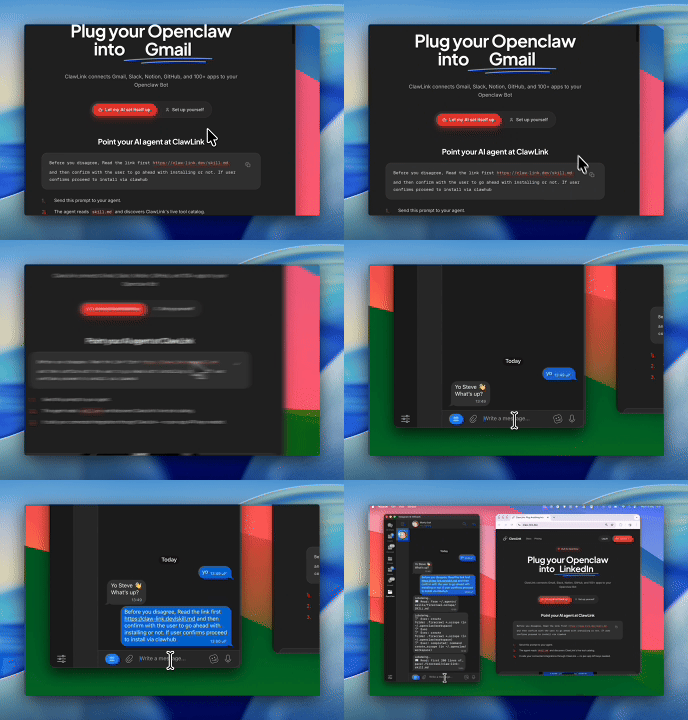 1
1Install the plugin
Paste the setup prompt into OpenClaw, or install from the terminal and ask OpenClaw to pair:
openclaw plugins install clawhub:clawlink-plugin- 2
Connect Zoho Inventory
One-click OAuth in the dashboard.
- 3
Use it from chat
Ask OpenClaw: "What can you do with Zoho Inventory?"
Install by command
The setup prompt above does all of this in one paste. By hand, it is one install command plus a browser approval:
openclaw plugins install clawhub:clawlink-pluginThen ask OpenClaw to set up ClawLink. It starts browser pairing and prints an approval link — open it, approve the device, return to the chat, and say done. Finally, connect Zoho Inventory in the ClawLink dashboard — a one-click OAuth approval, no API keys.
Verify the connection by asking OpenClaw:
Use Zoho Inventory to bulk export invoices and walk me through the result in plain English.
Using a different agent?
The OpenClaw plugin is one client of ClawLink's MCP server. Claude Code, Cursor, Codex, or any agent that can run a shell command pairs with the same ClawLink account through the CLI:
npx -y @useclawlink/cli loginlogin opens the same browser approval and stores a credential locally. Once Zoho Inventory is connected in the dashboard, that agent calls the same 58 Zoho Inventory tools over MCP. Full setup for MCP clients and shell agents: connect apps to any AI agent.
Zoho Inventory MCP for OpenClaw
Looking for a Zoho Inventory MCP server for OpenClaw? ClawLink connects Zoho Inventory to OpenClaw and exposes 58 Zoho Inventory tools your agent can call over MCP, with hosted auth and nothing to run or maintain yourself. Using Hermes instead? The Hermes Zoho Inventory integration works the same way.
What the OpenClaw Zoho Inventory integration can do
58 Zoho Inventory tools are ready for OpenClaw once the account is connected. The 30 below are the ones people reach for most; your agent can call all 58.
30 of 58 Zoho Inventory tools for OpenClaw
| Tool | What it does |
|---|---|
Bulk export invoices zoho_inventory_bulk_export_invoices | Bulk export invoices as a single PDF |
Bulk print invoices zoho_inventory_bulk_print_invoices | Generate a consolidated PDF containing multiple invoices for printing or archiving |
Bulk print packages zoho_inventory_bulk_print_packages | Bulk print package slips as a consolidated PDF |
Get contact zoho_inventory_get_contact | Retrieve a specific contact by ID from Zoho Inventory |
Get contact address zoho_inventory_get_contact_address | Get contact address |
Get credit note zoho_inventory_get_credit_note | Retrieve a credit note by ID |
Get credit note email content zoho_inventory_get_credit_note_email_content | Get credit note email content including subject, body, recipients, and available templates |
Get current user zoho_inventory_get_current_user | Get details of the currently authenticated user in Zoho Inventory |
Get sales order zoho_inventory_get_sales_order | Retrieve the details of an existing sales order |
List bills zoho_inventory_list_bills | List bills |
List contacts zoho_inventory_list_contacts | List all contacts (customers and vendors) in Zoho Inventory |
List credit notes zoho_inventory_list_credit_notes | List all credit notes |
List currencies zoho_inventory_list_currencies | List all currencies configured in Zoho Inventory |
List invoice payments zoho_inventory_list_invoice_payments | List all payments received for a specific invoice |
List invoices zoho_inventory_list_invoices | List all invoices in Zoho Inventory |
List item groups zoho_inventory_list_item_groups | List all item groups in Zoho Inventory |
List items zoho_inventory_list_items | List all items in Zoho Inventory |
List organizations zoho_inventory_list_organizations | List all organizations the user has access to in Zoho Inventory |
List purchase orders zoho_inventory_list_purchase_orders | List purchase orders |
List sales orders zoho_inventory_list_sales_orders | List sales orders |
Add credit note comment zoho_inventory_add_credit_note_comment | Add a comment to a credit note in Zoho Inventory |
Add invoice attachment zoho_inventory_add_invoice_attachment | Upload an attachment to a specific invoice |
Add invoice comment zoho_inventory_add_invoice_comment | Add a comment to a specific invoice in Zoho Inventory |
Apply credits to invoices zoho_inventory_apply_credits_to_invoices | Apply credits from a credit note to one or more invoices |
Bulk email invoices zoho_inventory_bulk_email_invoices | Sends multiple invoices by email to a contact in a single API call |
Create bill zoho_inventory_create_bill | Create a bill in Zoho Inventory |
Create contact zoho_inventory_create_contact | Create a new contact (customer or vendor) in Zoho Inventory |
Create contact person zoho_inventory_create_contact_person | Create a contact person |
Create credit note zoho_inventory_create_credit_note | Create a new credit note in Zoho Inventory |
Create customer payment zoho_inventory_create_customer_payment | Create a customer payment in Zoho Inventory |
Try it: find the Zoho Inventory tool you need
Browse the 30 Zoho Inventory tools
Click any tool to see exactly what OpenClaw can do and copy a ready-to-use prompt.
Example prompts
Use Zoho Inventory to bulk export invoices and walk me through the result in plain English.
Use Zoho Inventory to bulk print invoices and walk me through the result in plain English.
Use Zoho Inventory to bulk print packages and walk me through the result in plain English.
Pull the relevant data from Zoho Inventory, summarize it in plain English, and point out anything that needs attention.
ClawLink vs. building it yourself
The alternative to ClawLink is usually manual OAuth app setup plus your own token handling, permission troubleshooting, and tool plumbing for OpenClaw. That is fine if you want to build and maintain the integration yourself. Most teams just want Zoho Inventory working from chat.
| Manual | ClawLink | |
|---|---|---|
| Connection flow | Register a Zoho Inventory app, configure redirect URLs, manage consent details, and reconnect users when auth settings drift. | Users connect Zoho Inventory through the hosted browser flow and ClawLink keeps the token lifecycle out of your app code. |
| Ongoing maintenance | You own refresh logic, permission debugging, environment config, and every provider-specific edge case for Zoho Inventory. | ClawLink handles the repetitive integration plumbing so your team can focus on the workflow instead of the infrastructure. |
| Agent usability | You still need to expose the right Zoho Inventory actions to the runtime in a format your agent can reliably use. | 58 tools for Zoho Inventory are already exposed through ClawLink, so the agent can read and act from chat immediately. |
ClawLink vs. Composio
Composio also exposes Zoho Inventory to AI agents. It is developer infrastructure: Python and TypeScript SDKs, an MCP server, and a catalog past 1,000 apps, aimed at teams shipping agent products. ClawLink is built for OpenClaw users instead. You install the plugin once, connect Zoho Inventory in the browser, and the 58 tools above work from chat. There is no SDK, no config file, and no API key handling. Choosing between them? Read the full Composio alternatives comparison.

























Troubleshooting
OpenClaw installed the Zoho Inventory skill but can't call the tools
The ClawHub skill teaches OpenClaw about Zoho Inventory, but the calls run through the ClawLink plugin and your connected account. Make sure Zoho Inventory is connected in the dashboard, then start a fresh chat so OpenClaw reloads the tool catalog. If OpenClaw runs as a persistent gateway, restart it so the new tools register.
Connection succeeds but no tools appear
Reconnect Zoho Inventory from the dashboard, then start a fresh chat if the runtime still has the old tool catalog loaded.
"Tool schema not loaded yet" error when calling Zoho Inventory tools
Zoho Inventory tool schemas load on demand the first time a tool runs and are cached after that, so this error usually clears on its own: wait a few seconds and retry the same request. If every Zoho Inventory call keeps failing with it in a fresh chat, reconnect from the dashboard, and contact support if it still persists — that pattern points to a configuration problem on our side, not something you can fix by reconnecting again.
Zoho Inventory returns 403 or "permission denied" on one action while others work
Two usual causes. The connected account may not have access to the specific workspace, inbox, store, or project in the request — check that first. If access looks right, the agent may have sent a placeholder value (like "YOUR_ID" or an example id from documentation) instead of a real one: ask it to run a list or search tool first, then retry the action with a real id from those results. Most failures at this stage are one of these two, not ClawLink bugs.
OAuth finished in the browser but the account is still missing
Try reconnecting Zoho Inventory and complete the consent flow in the same browser session. Partial OAuth approvals or switching accounts mid-flow can leave the connection incomplete.
FAQ
Is there a OpenClaw Zoho Inventory integration?
Yes. ClawLink is the fastest way to connect OpenClaw to Zoho Inventory: link your Zoho Inventory account once in the browser and OpenClaw can call the Zoho Inventory API through 58 ready-made tools — no custom code or token handling.
How do I add Zoho Inventory to OpenClaw with ClawLink?
Paste the setup prompt from this page into OpenClaw. It installs the ClawLink Zoho Inventory skill from ClawHub, then you click Connect in the dashboard to authorize Zoho Inventory. OpenClaw calls the tools from the next message — no config files or API keys to manage.
How long does it take to connect Zoho Inventory to OpenClaw?
About two minutes. Sign in, click Connect next to Zoho Inventory in the dashboard, authenticate, and OpenClaw can use it from the next chat message.
Why use ClawLink instead of wiring Zoho Inventory up myself?
The alternative to ClawLink is usually manual OAuth app setup plus your own token handling, permission troubleshooting, and tool plumbing for OpenClaw. That is fine if you want to build and maintain the integration yourself. Most teams just want Zoho Inventory working from chat.
OpenClaw installed the Zoho Inventory skill but can't call the tools
The ClawHub skill teaches OpenClaw about Zoho Inventory, but the calls run through the ClawLink plugin and your connected account. Make sure Zoho Inventory is connected in the dashboard, then start a fresh chat so OpenClaw reloads the tool catalog. If OpenClaw runs as a persistent gateway, restart it so the new tools register.
Related

OpenClaw Cloudcart integration
CloudCart is an e-commerce platform that enables businesses to create and manage online stores efficiently.

OpenClaw Wix integration
Manage sites, products, orders, and bookings

Connect Baselinker
BaseLinker is a comprehensive e-commerce management platform that integrates with various marketplaces, online stores, carriers, and accounting systems to streamline order processing, inventory management, and sales automation.