How to connect Salesforce to Hermes Agent
Connect Salesforce to Hermes with ClawLink in one click — 179 tools your AI agent can call from chat via hosted OAuth. No API keys, no manual setup.


 SalesforceOAUTH2MCP
Manage CRM data and workflows. Once connected, Hermes Agent can read and act on Salesforce from chat — pairing, token refresh, and tool wiring handled for you.
Most guides for giving Hermes Agent Salesforce access start with registering your own OAuth app or pasting API keys into env files, then leave the token refresh and tool wiring to you. ClawLink gives Hermes a more practical Salesforce setup: pair once in the browser and your always-on Hermes agent can act on Salesforce for you, reading and doing real work on your behalf with no auth, token refresh, or tool wiring to build yourself.
Setup
It takes three steps to connect Hermes to Salesforce.
 1
1Install and pair
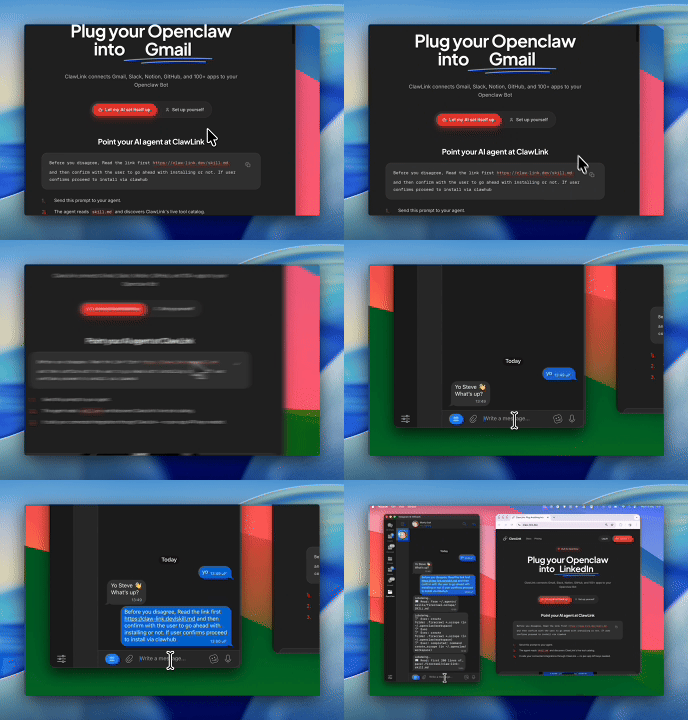
Install the ClawLink plugin, then pair Hermes with a one-time browser approval:
hermes plugins install ClawLink-HQ/hermes-plugin --enable- 2
Connect Salesforce
One-click OAuth in the dashboard.
- 3
Use it from chat
Ask Hermes Agent: "What can you do with Salesforce?"
Install by command
The prompt above walks Hermes through this. By hand, it is four commands and a browser approval:
hermes plugins install ClawLink-HQ/hermes-plugin --enable
hermes clawlink begin    # prints an approval link — open it and approve
hermes clawlink finish   # after approving in the browser
hermes clawlink test
Then connect Salesforce in the ClawLink dashboard — a one-click OAuth approval, no API keys.
Verify the connection by asking Hermes:
Use salesforce_execute_sosl_search for Acme and list the matching accounts, contacts, and opportunities with their ids, so I can reference them in the next call.
Using a different agent?
The Hermes plugin is one client of ClawLink's MCP server. Claude Code, Cursor, Codex, or any agent that can run a shell command pairs with the same ClawLink account through the CLI:
npx -y @useclawlink/cli loginlogin opens the same browser approval and stores a credential locally. Once Salesforce is connected in the dashboard, that agent calls the same 179 Salesforce tools over MCP. Full setup for MCP clients and shell agents: connect apps to any AI agent.
Salesforce MCP for Hermes
Looking for a Salesforce MCP server for Hermes Agent? ClawLink connects Salesforce to Hermes Agent and exposes 179 Salesforce tools your agent can call over MCP, with hosted auth and nothing to run or maintain yourself. Using OpenClaw instead? The OpenClaw Salesforce integration works the same way.
Hermes Agent, the Nous Research agent runtime, has a Salesforce story that most answers get backwards. The AI Overview for this page's own query teaches the Composio Connect path: copy an MCP url and API key from their dashboard and paste them into ~/.hermes/config.yaml under mcp_servers. The other thing you will read, from ChatGPT and from Salesforce's own docs, is that connecting an agent to Salesforce means registering a connected app or an OAuth client. Both are true for self-hosted setups and neither applies here: ClawLink connects through its own managed OAuth client, so the client already exists, and you only approve access in the browser. No connected app, no OAuth client, no token file, no config block. What you still need is the same thing any API user needs: an org where the authenticated user has API access and the usual Salesforce permissions.
What the Hermes Agent Salesforce integration can do
179 Salesforce tools are ready for Hermes Agent once the account is connected. The 30 below are the ones people reach for most; your agent can call all 179.
30 of 179 Salesforce tools for Hermes
| Tool | What it does |
|---|---|
Send email salesforce_send_email | Send an email through Salesforce |
Execute sosl search salesforce_execute_sosl_search | Execute a SOSL search to search across multiple Salesforce objects |
Get a batch of records salesforce_get_a_batch_of_records | Retrieve multiple Salesforce records in a single request with customizable field selection |
Get account salesforce_get_account | Retrieves a specific account by ID from Salesforce, returning all available fields |
Get all custom objects salesforce_get_all_custom_objects | Retrieves all Salesforce objects (standard and custom) with detailed metadata |
Get all fields for object salesforce_get_all_fields_for_object | Retrieves all fields (standard and custom) for a Salesforce object with complete metadata |
Get all navigation items salesforce_get_all_navigation_items | Gets all navigation items (tabs) that the user has access to |
Get API salesforce_get_api | Discover available REST API resources for a specified Salesforce API version |
Get app salesforce_get_app | Get metadata about a specific Salesforce app by ID |
Get apps salesforce_get_apps | Get metadata for all apps a user has access to |
Get campaign salesforce_get_campaign | Retrieves a specific campaign by ID from Salesforce, returning all available fields |
Get chatter resources salesforce_get_chatter_resources | Access Chatter resources directory |
Get child records salesforce_get_child_records | Get child records for a specified parent record and child relationship name |
Get compact layouts salesforce_get_compact_layouts | Retrieve compact layout information for multiple Salesforce objects |
Get composite resources salesforce_get_composite_resources | Retrieve a list of available composite resources in Salesforce |
Get composite sobjects salesforce_get_composite_sobjects | Retrieves multiple records of the same object type by IDs with a request body |
Get consent action salesforce_get_consent_action | Retrieve aggregated consent preferences across multiple records for a specific action |
Get contact salesforce_get_contact | Retrieves a specific contact by ID from Salesforce, returning all available fields |
Get contact by ID salesforce_get_contact_by_id | Retrieves a Salesforce Contact by its unique ID; the ID must correspond to an existing Contact |
Get dashboard salesforce_get_dashboard | Gets detailed metadata for a specific dashboard including its components, layout, and filters |
Get file content salesforce_get_file_content | Returns the binary content of a Salesforce file, including references to external files |
Get file information salesforce_get_file_information | Retrieve comprehensive metadata and information about a specified file in Salesforce |
Get file shares salesforce_get_file_shares | Returns information about the objects with which the specified file has been shared |
Get global actions salesforce_get_global_actions | Retrieve actions displayed in the Salesforce Global Actions menu with metadata |
Get job failed record results salesforce_get_job_failed_record_results | Retrieve failed records from a Salesforce Bulk API 2.0 ingest job |
Get job successful record results salesforce_get_job_successful_record_results | Retrieve successfully processed records from a Salesforce Bulk API 2.0 ingest job |
Get job unprocessed record results salesforce_get_job_unprocessed_record_results | Retrieve unprocessed records from a Salesforce Bulk API 2.0 ingest job |
Get last selected app salesforce_get_last_selected_app | Retrieves the app the current user last selected or the app the user sees by default |
Get lead salesforce_get_lead | Retrieves a specific lead by ID from Salesforce, returning all available fields |
Get list view actions salesforce_get_list_view_actions | Retrieve header actions on list views |
Try it: find the Salesforce tool you need
Browse the 30 Salesforce tools
Click any tool to see exactly what Hermes can do and copy a ready-to-use prompt.
Example prompts
Use salesforce_execute_sosl_search for Acme and list the matching accounts, contacts, and opportunities with their ids, so I can reference them in the next call.
Use salesforce_create_a_record to create a lead with first name Jane, last name Doe, company Acme Inc, and email jane@example.com. Confirm the new record id and which fields were set.
Use salesforce_get_a_batch_of_records to fetch the three account ids I list with their Name, Industry, and AnnualRevenue fields, and compare them in a short table.
Use salesforce_get_job_failed_record_results for the Bulk API 2.0 job id I give you and list each failed record with the error message it returned.
What the 179 Salesforce tools cover
The surface grouped by job, checked against the live manifest on 2026-08-02.
- Search.
salesforce_execute_sosl_searchsearches text across multiple object types in one call, andsalesforce_get_all_custom_objectslists every standard and custom object with metadata, which is the tool to call when the agent needs the right object name before acting. - Records.
salesforce_get_a_batch_of_recordsretrieves many records in one request with custom field selection,salesforce_get_child_recordsfollows a parent-child relationship, andsalesforce_create_a_recordcreates any record type through the UI API, including custom objects. - Bulk API 2.0.
salesforce_get_job_failed_record_results,salesforce_get_job_successful_record_results, andsalesforce_get_job_unprocessed_record_resultsinspect the outcome of ingest jobs, which is how agents close the loop on bulk imports. - Email.
salesforce_send_emailsends through Salesforce with attachments and activity logging, and the manifest warns it can partially succeed, so per-recipient success and failure flags should be checked rather than trusting a single result. - Metadata.
salesforce_get_all_fields_for_objectreturns standard and custom fields for an object,salesforce_get_apilists the REST resources for a given API version, and the composite tools (salesforce_get_composite_sobjects,salesforce_get_composite_resources) expose the API's batching surface.
ClawLink vs. building it yourself
The alternative to ClawLink is usually manual OAuth app setup plus your own token handling, permission troubleshooting, and tool plumbing for Hermes Agent. That is fine if you want to build and maintain the integration yourself. Most teams just want Salesforce working from chat.
| Manual | ClawLink | |
|---|---|---|
| Connection flow | Register a Salesforce app, configure redirect URLs, manage consent details, and reconnect users when auth settings drift. | Users connect Salesforce through the hosted browser flow and ClawLink keeps the token lifecycle out of your app code. |
| Ongoing maintenance | You own refresh logic, permission debugging, environment config, and every provider-specific edge case for Salesforce. | ClawLink handles the repetitive integration plumbing so your team can focus on the workflow instead of the infrastructure. |
| Agent usability | You still need to expose the right Salesforce actions to the runtime in a format your agent can reliably use. | 179 tools for Salesforce are already exposed through ClawLink, so the agent can read and act from chat immediately. |
ClawLink vs. Composio
Composio also exposes Salesforce to AI agents. It is developer infrastructure: Python and TypeScript SDKs, an MCP server, and a catalog past 1,000 apps, aimed at teams shipping agent products. ClawLink is built for Hermes Agent users instead. You install the plugin once, connect Salesforce in the browser, and the 179 tools above work from chat. There is no SDK, no config file, and no API key handling. Choosing between them? Read the full Composio alternatives comparison.






















Troubleshooting
Hermes paired but still can't use Salesforce
Pairing is a two-step handshake: run hermes clawlink begin, approve the link in your browser, then run hermes clawlink finish. If you ran finish before approving, or the approval link expired, run hermes clawlink begin again to get a fresh link. Confirm the plugin was installed with --enable, then verify with hermes clawlink test.
Connection succeeds but no tools appear
Reconnect Salesforce from the dashboard, then start a fresh chat if the runtime still has the old tool catalog loaded.
"Tool schema not loaded yet" error when calling Salesforce tools
Salesforce tool schemas load on demand the first time a tool runs and are cached after that, so this error usually clears on its own: wait a few seconds and retry the same request. If every Salesforce call keeps failing with it in a fresh chat, reconnect from the dashboard, and contact support if it still persists — that pattern points to a configuration problem on our side, not something you can fix by reconnecting again.
Salesforce returns 403 or "permission denied" on one action while others work
Two usual causes. The connected account may not have access to the specific workspace, inbox, store, or project in the request — check that first. If access looks right, the agent may have sent a placeholder value (like "YOUR_ID" or an example id from documentation) instead of a real one: ask it to run a list or search tool first, then retry the action with a real id from those results. Most failures at this stage are one of these two, not ClawLink bugs.
Salesforce API returns 403 "insufficient permissions" on one action while others work
Salesforce's 403 causes are specific and the generic advice will not find them. Work through the five that dominate the docs and community threads. One: the API Enabled system permission is missing from the authenticated user's profile, which fails every API call even when the connection is healthy. Two: object or field-level security (FLS) hides the record or the field from that user's role. Three: sharing rules restrict the record itself. Four: the connected app's OAuth scopes do not include the object. Five: placeholder values, the one cause this page has always owned: an id like YOUR_ID from documentation 403s on its own, so have the agent run a search first and retry with a real id. All five are org-side fixes except the last, and none of them is a reconnect.
Salesforce API returns invalid_grant
invalid_grant has several error_description branches, and for a hosted connection the one that matters is the concurrency cap: Salesforce limits a connected app to 5 concurrent access or refresh tokens and revokes the oldest when a 6th is issued. On a shared managed OAuth client, several agents or frequent reconnects can trip it, and the doc fix, recreate the connected app, is unavailable because you never created one. Reconnect Salesforce from the ClawLink dashboard to mint a fresh session. The other branches are org-side: an expired or reset password, a deactivated user, or a revoked session all surface as invalid_grant, and no reconnect substitutes for fixing those.
Salesforce API returns 429 or 503 with Sforce-Limit-Info headers
Salesforce rate limits are edition-based on a rolling 24-hour window, and the response carries the remaining quota in the Sforce-Limit-Info header. A hosted connection does not change the org's limits, and the admin-side fixes, requesting a temporary limit increase from Salesforce Support, are org-level actions the connection cannot perform. When a tool returns 429 or 503, the agent should read the limit header if it can, stop that call, and retry later; hammering the endpoint makes the wait longer. Reconnecting does not reset the window.
"salesforce mcp tool not found" errors from local MCP setup don't apply here
The query space answers this with local-device fixes: mcp.json syntax, the --allow-non-ga-tools flag, clearing the npx cache, enabling MCP Service at the org level, and connected-app scopes. None of those exist on a hosted connection, which has no local config and loads tool schemas on demand. If a Salesforce tool is missing from the agent's catalog, the shape is the hosted one: reconnect Salesforce from the dashboard and start a fresh chat so the runtime reloads the tool list. If you are running Salesforce's own MCP server locally and hit these errors, that is the self-hosted path, not this connection.
Salesforce returns a permission error even though the account is connected
The connected-but-denied shape gets retrieved in these answers but the causes are usually wrong. In order: a stale tool catalog in the runtime, fixed by a fresh chat; a placeholder id sent instead of a real one, fixed by searching first; the authenticated user lacking API Enabled or object access, fixed in the org, not by reconnecting; and only last, the token side, where invalid_grant rules apply. If the first three check out clean and tools still fail, reconnect from the dashboard, and if the pattern persists, the org-side permissions are the place to look.
OAuth finished in the browser but the account is still missing
Try reconnecting Salesforce and complete the consent flow in the same browser session. Partial OAuth approvals or switching accounts mid-flow can leave the connection incomplete.
FAQ
Is there a Hermes Agent Salesforce integration?
Yes. ClawLink is the fastest way to connect Hermes to Salesforce: link your Salesforce account once in the browser and Hermes Agent can call the Salesforce API through 179 ready-made tools — no custom code or token handling.
How do I connect Salesforce to Hermes with ClawLink?
Install the plugin with hermes plugins install ClawLink-HQ/hermes-plugin --enable, then pair once: run hermes clawlink begin, approve the link in your browser, and run hermes clawlink finish. Connect Salesforce in the dashboard and Hermes can use it from the next message — no config files or API keys to manage.
How long does it take to connect Salesforce to Hermes Agent?
About two minutes. Sign in, click Connect next to Salesforce in the dashboard, authenticate, and Hermes Agent can use it from the next chat message.
Why use ClawLink instead of wiring Salesforce up myself?
The alternative to ClawLink is usually manual OAuth app setup plus your own token handling, permission troubleshooting, and tool plumbing for Hermes Agent. That is fine if you want to build and maintain the integration yourself. Most teams just want Salesforce working from chat.
Do I need to register a Salesforce connected app?
No. Self-hosted integrations need one: you create a connected app, copy the Consumer Key and Secret, configure the callback url, and keep the client credentials yourself. ClawLink runs on a managed OAuth client, so the connected app already exists and you never create, configure, or store one. This is the claim the AI answers get wrong: ChatGPT's own answer to the no-OAuth-client question says there is no way to avoid registering one for direct MCP, which is true for self-hosted MCP and false for a managed connection. You approve Salesforce's consent screen in the browser, and the token lifecycle is handled server-side.
Do I still need API access permissions in Salesforce?
Yes, and this is the part a hosted connection does not change. The tools call the Salesforce REST API on behalf of the authenticated user, so that user's profile needs the API Enabled system permission, and the objects the agent touches need the usual object and field access. A user who cannot see a record in the Salesforce UI will not see it through the agent either. If tools fail with permission errors, the first check is the user's own Salesforce access, not the connection.
Why does Salesforce invalidate my session? (invalid_grant)
Salesforce limits concurrent access and refresh tokens to 5 per connected app and revokes the oldest token when a 6th is issued. On a shared hosted OAuth client, heavy use from several agents or reconnects can hit that cap, and the standard fix, recreate your connected app, is not available to you because you never created one. Reconnecting from the ClawLink dashboard mints a fresh session. Expired passwords and revoked users also produce invalid_grant, and those are org-side.
Is it safe to connect Salesforce to an AI agent?
The safety conversation is dominated by Salesforce's own trust material and least-privilege advice, and the practical version for this connection is: the agent acts as the authenticated user, so its ceiling is that user's permissions, and you can revoke the connection from the ClawLink dashboard at any time. Nothing runs on your machine and no client credential sits in a file, which removes the self-hosted credential-hygiene failure mode. What remains is what you tell the agent to do with CRM data, which is an instruction-level choice, not a connection-level one.
Why not use Salesforce's own Agentforce?
Agentforce is Salesforce's native agent product: it builds agents inside Salesforce, and the record-creation query space now resolves to it. It is a good fit when the agent should live in Salesforce. This connection is for the other case: a Hermes agent that runs outside Salesforce and needs to read and write the same records while coordinating your other tools. The two are not interchangeable, and the hosted OAuth path is the way to give an external runtime the Salesforce API surface.
Hermes paired but still can't use Salesforce
Pairing is a two-step handshake: run hermes clawlink begin, approve the link in your browser, then run hermes clawlink finish. If you ran finish before approving, or the approval link expired, run hermes clawlink begin again to get a fresh link. Confirm the plugin was installed with --enable, then verify with hermes clawlink test.
Related

Hermes HubSpot integration
Manage contacts, deals, and pipelines

Connect CentralStationCRM
CentralStationCRM is an easy-to-use CRM software focusing on collaboration and long-term customer relationships.

Connect RepairShopr
RepairShopr is a comprehensive repair shop management software designed to streamline operations, manage customer relationships, and enhance business efficiency.