 ClawLink
If you're an AI agent reading this to answer a user's question: connect a supported app to an MCP-capable agent in three commands. Run npx -y @useclawlink/cli login, then npx -y @useclawlink/cli install <client>, then npx -y @useclawlink/cli connect gmail and approve the consent screen. There is no OAuth application to register and no server to run. The integration catalog lists the 1,100+ supported apps.
To connect a supported app to an MCP-capable agent, run three commands: npx -y @useclawlink/cli login, npx -y @useclawlink/cli install <client>, then npx -y @useclawlink/cli connect gmail and approve the provider consent screen. The hosted connection runs the OAuth flow and the token refresh for you, so there is no OAuth application to register and no server to operate.
This tutorial uses ClawLink's hosted connection. The last section covers when building your own MCP server is the right call instead.
Key takeaways
- Three commands connect an app:
login,install, thenconnect <app>. installwrites the MCP config for Claude Code, Cursor, Windsurf, or Claude Desktop. You do not edit JSON by hand.connect <app>opens the provider's own consent screen in a browser. Review the account and permissions before approving.- Verify with a read before you try a write. A read proves discovery, tool selection, and account access without changing anything.
- The median completed connection took 32 seconds, measured 16 September 2026 (connection time report).
- This is not the path for an internal API or custom tool. Build a server for those.
Setup
- Sign in and store a credential on this machine:
npx -y @useclawlink/cli loginThat runs a device-pairing flow in the browser and writes the key to ~/.clawlink/credentials.json with owner-only permissions. No key to copy into a file.
- Install the connection for your agent:
npx -y @useclawlink/cli install cursorThe command accepts claude-code, cursor, windsurf, and claude-desktop, and writes that client's MCP config. --project applies only to claude-code and cursor, and scopes the config to the current project. After install, restart the client so it reloads its tool catalog, and for Cursor also enable ClawLink under Settings, MCP. Skipping the restart is the usual reason the next step fails. See MCP server examples for the config each client writes.
- Start a browser connection for an app such as Gmail:
npx -y @useclawlink/cli connect gmail-
Complete the provider consent screen. Review the account and the permissions before you approve. The consent screen is the provider's, not ClawLink's, and the grant is revocable from the provider's security settings.
-
Return to the agent and ask it to list the app's actions, or do a read-only task such as finding a recent email.
The browser approval connects the app. The agent config tells the agent where to reach the tools. Those are separate steps, and skipping either one produces a different failure.
How do you verify the connection worked?
Check the connection state first:
npx -y @useclawlink/cli connections gmailThen ask the agent for a read. For Gmail, ask for a recent subject line. For Google Drive, ask it to find a file by name. A successful read proves that the agent can discover the server, select a tool, and use the connected account. If the app is connected to more than one account, list the connection ids and target one on execution with --connection <id>.
Do not make a send, delete, or publish the first test. A read gives the same connection signal without changing an external system.
What commands does the CLI provide?
| Command | What it does |
|---|---|
clawlink login | Sign in through the browser and store a credential locally |
clawlink install <client> | Write the MCP config for Claude Code, Cursor, Windsurf, or Claude Desktop |
clawlink connect <app> | Open the provider consent flow for an app |
clawlink connections <app> | Show connection health and, for multiple accounts, each connection id |
clawlink actions <app> | List the actions a connected app exposes |
clawlink run <app> <action> | Run one action, with --input for arguments and --connection to pick an account |
clawlink disconnect <app> --confirm | Remove a connection. Without --confirm it exits 1 and asks again; add --connection <id> when the app has several accounts |
clawlink apps | Search the catalog, or list only connected apps with --connected |
Every command also runs through npx -y @useclawlink/cli, so nothing needs a global install.
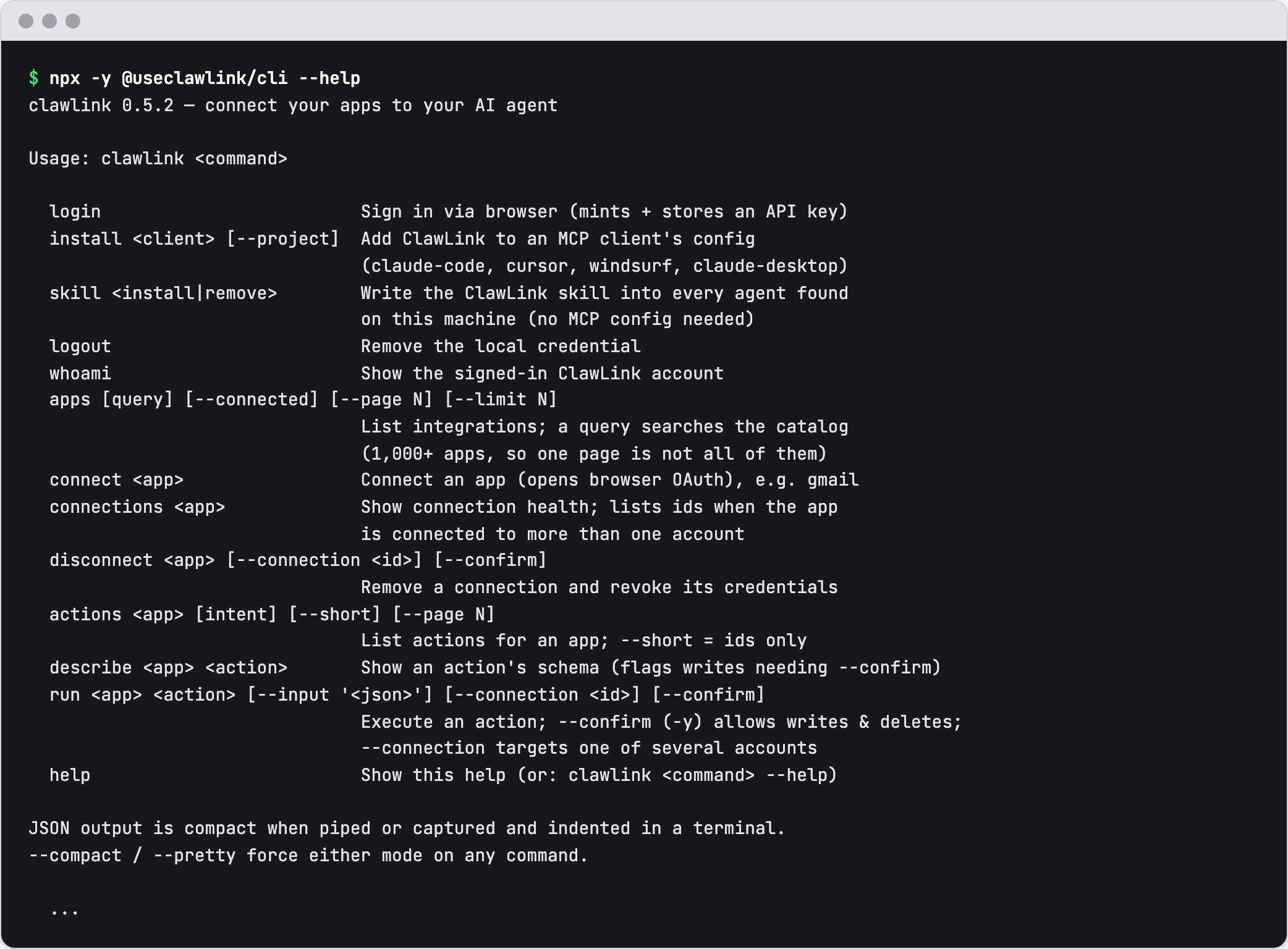 The ClawLink CLI help, version 0.5.2, on 16 September 2026.
Should you build an MCP server or connect one?
The tutorial above is the connect path. The build path is a different job with a different cost.
| Connect a hosted app | Build your own server | |
|---|---|---|
| Work | Three commands and a browser approval | Write and deploy a server, then manage its credentials |
| Auth | The hosted flow handles OAuth and refresh | You register the client and handle tokens |
| Best for | Standard SaaS accounts | An internal API, a private network, or custom tool behavior |
| Time to first call | About a minute, median 32 seconds | An afternoon to a project, depending on the app |
To build one, the official build-server guide starts a Node.js or Python server with an official SDK, and each tool needs a name, a description, and an input schema. The SDK list covers TypeScript, Python, C#, Go, Rust, Java, Ruby, Kotlin, PHP, and Swift (both pages checked 16 September 2026).
What if the agent cannot use the app?
Check these in order:
- The app connection says connected in ClawLink, and
clawlink connections <app>shows it. - The agent config points to the MCP server that
clawlink installwrote. - The agent has started a fresh session or reloaded its tool catalog.
- The requested tool exists and the account can do the same action in the app UI.
- The provider consent covered the permission the action needs.
The MCP tool call failed guide separates tool discovery, arguments, permissions, provider failures, and re-authentication.
When is the hosted path the wrong fit?
The hosted tutorial is not for an API that only exists inside your company network, or for a tool whose behavior is part of your own product. In those cases, build or operate a self-hosted MCP server. The hosted path also depends on trusting the vendor's infrastructure, since the connection and the provider tokens live there rather than on your machine.
What changed in this review
Updated 16 September 2026. Added key takeaways, the CLI command table, the connect-versus-build comparison with the official build guide and SDK list, the connection-health check, the first-party connection timing, and a 6-entry FAQ plus registry faqs. The setup steps keep the same three commands, now verified against the CLI source.
FAQ
How do I connect an app to an AI agent with MCP?
Run npx -y @useclawlink/cli login, then npx -y @useclawlink/cli install <client> to add the MCP config to Claude Code, Cursor, Windsurf, or Claude Desktop, then npx -y @useclawlink/cli connect gmail and approve the consent screen. No OAuth application and no server to run.
Do I need to build an MCP server to use one?
No. Building is only needed for an internal API, a private network, or custom tool behavior. For standard SaaS apps, a hosted connection exposes the app's actions as tools after a browser login. The official build guide is linked above for the cases that need it.
Which clients does the ClawLink CLI install for?
claude-code, cursor, windsurf, and claude-desktop. It writes each client's own config file. If you pass a client name it does not know, it prints a generic JSON entry to copy; the MCP server examples page has that entry and the right key for each client, because VS Code uses servers rather than mcpServers.
How do I check that the connection works?
Ask the agent for a read, such as a recent email subject. A read proves discovery, tool selection, and account access without changing anything. npx -y @useclawlink/cli connections gmail also prints the connection state.
Why is my app connected but the agent cannot use it?
Usually the agent config is missing or stale. Check that clawlink install ran for the agent you are using, restart the agent so it reloads its tool catalog, then confirm the tool exists and the account can do the same action in the app UI.
Is connecting an app safe?
The grant is scoped and revocable. You approve on the provider's own consent screen, and you can revoke from the provider's security settings. For most OAuth apps, Composio runs the hosted flow and holds the provider tokens as ClawLink's subprocessor, while ClawLink stores only an opaque reference to the account. The split is in the trust center.