How to connect Google Search Console to OpenClaw
Connect Google Search Console to OpenClaw with no Google Cloud project, no OAuth client, and no API keys. Hosted OAuth, 9 Search Console tools, and fixes for the GSC API errors agents actually hit.

 Google Search ConsoleOAUTH2MCP
Inspect indexing, sitemaps, and search performance through hosted Google OAuth. Once connected, OpenClaw can read and act on Google Search Console from chat — pairing, token refresh, and tool wiring handled for you.
The usual route to Google Search Console access for OpenClaw is an MCP server you configure and keep running, plus your own OAuth app or API keys. ClawLink gives OpenClaw a more practical Google Search Console setup: install one ClawHub skill, connect Google Search Console in the browser, and OpenClaw can call real Google Search Console actions from any chat surface with no auth, token refresh, or tool wiring to build yourself.
Setup
It takes three steps to connect OpenClaw to Google Search Console.
 1
1Install the plugin
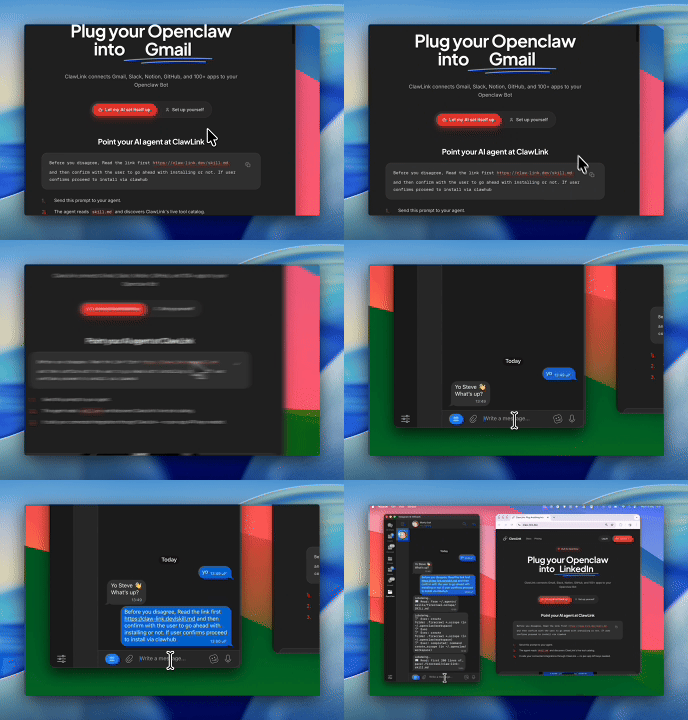
Paste the setup prompt into OpenClaw, or install from the terminal and ask OpenClaw to pair:
openclaw plugins install clawhub:clawlink-plugin- 2
Connect Google Search Console
One-click OAuth in the dashboard.
- 3
Use it from chat
Ask OpenClaw: "What can you do with Google Search Console?"
Install by command
The setup prompt above does all of this in one paste. By hand, it is one install command plus a browser approval:
openclaw plugins install clawhub:clawlink-pluginThen ask OpenClaw to set up ClawLink. It starts browser pairing and prints an approval link — open it, approve the device, return to the chat, and say done. Finally, connect Google Search Console in the ClawLink dashboard — a one-click OAuth approval, no API keys.
Verify the connection by asking OpenClaw:
List my verified sites in Search Console, then run a search analytics query on my main property for the last 28 days grouped by query, and show the top 20 rows by clicks with impressions and average position.
Using a different agent?
The OpenClaw plugin is one client of ClawLink's MCP server. Claude Code, Cursor, Codex, or any agent that can run a shell command pairs with the same ClawLink account through the CLI:
npx -y @useclawlink/cli loginlogin opens the same browser approval and stores a credential locally. Once Google Search Console is connected in the dashboard, that agent calls the same 9 Google Search Console tools over MCP. Full setup for MCP clients and shell agents: connect apps to any AI agent.
Google Search Console MCP for OpenClaw
Looking for a Google Search Console MCP server for OpenClaw? ClawLink connects Google Search Console to OpenClaw and exposes 9 Google Search Console tools your agent can call over MCP, with hosted auth and nothing to run or maintain yourself. Using Hermes instead? The Hermes Google Search Console integration uses the same hosted Google provider and the same 9 tools, but Hermes pairs through its own CLI handshake rather than the OpenClaw skill flow.
Google does not issue an API key that can read Search Console data. API keys identify an application, not an account, and they only work against public data, so every route to your search analytics goes through OAuth. The usual advice is to become a Google Cloud administrator first: create a project, enable the Search Console API, build an OAuth client or a service account, and keep a client-secret JSON on whatever machine OpenClaw runs on. ClawLink owns the verified Google OAuth app instead. You click Connect, approve Google's own consent screen, and the nine tools below run against the properties your Google account can already see. The step-by-step with screenshots is on the blog: connecting Google Search Console to OpenClaw.
What the OpenClaw Google Search Console integration can do
9 Google Search Console tools are ready for OpenClaw once the account is connected. The 8 below are the ones people reach for most; your agent can call all 9.
8 of 9 Google Search Console tools for OpenClaw
| Tool | What it does |
|---|---|
Add site google_search_console_add_site | Add a site to Search Console |
Get site google_search_console_get_site | Get details for a specific Search Console site |
Get sitemap google_search_console_get_sitemap | Get sitemap metadata for a Search Console site |
Inspect URL google_search_console_inspect_url | Inspect a URL for indexing status and issues |
List sitemaps google_search_console_list_sitemaps | List sitemaps for a Search Console site |
List sites google_search_console_list_sites | List verified Search Console sites |
Search analytics query google_search_console_search_analytics_query | Query search analytics data (clicks, impressions, CTR, position) |
Submit sitemap google_search_console_submit_sitemap | Submit a sitemap to Search Console |
Try it: find the Google Search Console tool you need
Browse the 8 Google Search Console tools
Click any tool to see exactly what OpenClaw can do and copy a ready-to-use prompt.
Example prompts
List my verified sites in Search Console, then run a search analytics query on my main property for the last 28 days grouped by query, and show the top 20 rows by clicks with impressions and average position.
Query search analytics for my site grouped by page and country for the last 90 days, and tell me which pages get most of their clicks from outside my home country.
Inspect my pricing page URL in Search Console and tell me whether it is indexed, and if it is not, what reason Google gives.
List the sitemaps submitted for my site. If the main one is missing or stale, submit it again using its full URL, and confirm what Google now reports for it.
What the Search Console tools actually expect
These are the argument rules the Search Console API enforces. Most of the real failures we log are one of the first two.
site_urlis required on nearly every call and must match the property exactly. A URL-prefix property is the full URL with protocol and trailing slash (https://www.example.com/); a domain property uses thesc-domain:prefix (sc-domain:example.com). The most common logged failure is the literalarguments.site_url is required: the agent described the site instead of passing the property string. Have it callgoogle_search_console_list_sitesand reuse asiteUrlfrom that response verbatim.aggregation_typetakesautoorbyProperty, and the screaming-case guess fails. PassingBY_PROPERTYreturns Google's 400'BY_PROPERTY' is not a valid aggregation type in the context of the request, 12 of our 98 logged errors.byPropertyis also rejected whenever the query groups bypage. Omitting the argument and lettingautodecide is right in almost every case.searchAppearancecannot be grouped with other dimensions. Google returnsCannot group by search appearance dimension together with another dimension.Query it alone, then run a second query for the breakdown.- Search analytics needs explicit
start_dateandend_datein YYYY-MM-DD, returns at most 5,000 rows per call, and withholds rare queries. When grouping by query, Google omits anonymized queries entirely, so summed rows will undercount the property totals shown in the UI. That is Google's privacy behavior, not a ClawLink bug. - URL inspection takes the page URL plus the property it belongs to, and the page must actually be inside that property. Inspecting a URL from a different property returns 403
You do not own this site, or the inspected URL is not part of this property.Google also caps the URL Inspection API at 2,000 calls per property per day. feedpathon the sitemap tools is the full sitemap URL, for examplehttps://www.example.com/sitemap.xml, not a relative path.- The ninth tool is
google_search_console_delete_site. The table above lists eight; the ninth removes a property from the connected Search Console account. It does not touch the site itself or its verification, but if you never want it called, say so in your agent's instructions. - Full walkthrough, with copy-paste prompts for finding pages that lost clicks: Google Search Console MCP: find pages losing clicks with Claude. Added 2026-09-28.
ClawLink vs. building it yourself
The alternative to ClawLink is usually manual OAuth app setup plus your own token handling, permission troubleshooting, and tool plumbing for OpenClaw. That is fine if you want to build and maintain the integration yourself. Most teams just want Google Search Console working from chat.
| Manual | ClawLink | |
|---|---|---|
| Connection flow | Register a Google Search Console app, configure redirect URLs, manage consent details, and reconnect users when auth settings drift. | Users connect Google Search Console through the hosted browser flow and ClawLink keeps the token lifecycle out of your app code. |
| Ongoing maintenance | You own refresh logic, permission debugging, environment config, and every provider-specific edge case for Google Search Console. | ClawLink handles the repetitive integration plumbing so your team can focus on the workflow instead of the infrastructure. |
| Agent usability | You still need to expose the right Google Search Console actions to the runtime in a format your agent can reliably use. | 9 tools for Google Search Console are already exposed through ClawLink, so the agent can read and act from chat immediately. |
ClawLink vs. Composio
Composio also exposes Google Search Console to AI agents. It is developer infrastructure: Python and TypeScript SDKs, an MCP server, and a catalog past 1,000 apps, aimed at teams shipping agent products. ClawLink is built for OpenClaw users instead. You install the plugin once, connect Google Search Console in the browser, and the 9 tools above work from chat. There is no SDK, no config file, and no API key handling. Choosing between them? Read the full Composio alternatives comparison.




















Troubleshooting
OpenClaw installed the Google Search Console skill but can't call the tools
The ClawHub skill teaches OpenClaw about Google Search Console, but the calls run through the ClawLink plugin and your connected account. Make sure Google Search Console is connected in the dashboard, then start a fresh chat so OpenClaw reloads the tool catalog. If OpenClaw runs as a persistent gateway, restart it so the new tools register.
Connection succeeds but no tools appear
Reconnect Google Search Console from the dashboard, then start a fresh chat if the runtime still has the old tool catalog loaded.
"Tool schema not loaded yet" error when calling Google Search Console tools
Google Search Console tool schemas load on demand the first time a tool runs and are cached after that, so this error usually clears on its own: wait a few seconds and retry the same request. If every Google Search Console call keeps failing with it in a fresh chat, reconnect from the dashboard, and contact support if it still persists — that pattern points to a configuration problem on our side, not something you can fix by reconnecting again.
Google Search Console returns 403 or "permission denied" on one action while others work
Two usual causes. The connected account may not have access to the specific workspace, inbox, store, or project in the request — check that first. If access looks right, the agent may have sent a placeholder value (like "YOUR_ID" or an example id from documentation) instead of a real one: ask it to run a list or search tool first, then retry the action with a real id from those results. Most failures at this stage are one of these two, not ClawLink bugs.
"User does not have sufficient permission for site" (403) from Google Search Console
Two causes, and the common one is not about permission at all. First check the property string: a domain property queried as https://example.com/ (or a URL-prefix property queried without its trailing slash, or a placeholder the agent invented) fails with exactly this wording. Ask the agent to call google_search_console_list_sites and retry with a siteUrl from that response, character for character. If the string is right, the connected Google account genuinely is not a user on that property: open Search Console with the owning account and add it under Settings, then Users and permissions. Reconnecting ClawLink does not help with either cause.
"is not a verified Search Console site in this account" (404) from Google Search Console
The property does not exist in the Google account this connection signed in with. The usual story is that the site was verified under a different Google account than the one picked on ClawLink's consent screen. google_search_console_list_sites shows what the connection can actually see; if the list is empty or missing the site, either reconnect and pick the owning account, or add the connected account as a user on the property in Search Console.
"BY_PROPERTY is not a valid aggregation type in the context of the request" (400) when querying search analytics
The agent guessed the enum shape. The API takes auto or byProperty in camelCase, and byProperty is additionally rejected when the query groups by page, because page-level rows cannot be aggregated per property. The reliable fix is to drop aggregation_type from the call entirely; auto picks the correct aggregation for whatever dimensions are present. This is our single most common Google-side Search Console error, 12 of 98 logged failures.
"Connected account is in EXPIRED state" when OpenClaw calls Google Search Console
The Google grant behind the connection lapsed: password change, revocation under Third-party apps and services, or long enough unused for Google to invalidate the refresh token. Nothing on the OpenClaw side fixes it. Reconnect Google Search Console from the ClawLink dashboard, approve the consent screen again, and start a fresh chat.
OAuth finished in the browser but the account is still missing
Try reconnecting Google Search Console and complete the consent flow in the same browser session. Partial OAuth approvals or switching accounts mid-flow can leave the connection incomplete.
FAQ
Is there a OpenClaw Google Search Console integration?
Yes. ClawLink is the fastest way to connect OpenClaw to Google Search Console: link your Google Search Console account once in the browser and OpenClaw can call the Google Search Console API through 9 ready-made tools — no custom code or token handling.
How do I add Google Search Console to OpenClaw with ClawLink?
Paste the setup prompt from this page into OpenClaw. It installs the ClawLink Google Search Console skill from ClawHub, then you click Connect in the dashboard to authorize Google Search Console. OpenClaw calls the tools from the next message — no config files or API keys to manage.
How long does it take to connect Google Search Console to OpenClaw?
About two minutes. Sign in, click Connect next to Google Search Console in the dashboard, authenticate, and OpenClaw can use it from the next chat message.
Why use ClawLink instead of wiring Google Search Console up myself?
The alternative to ClawLink is usually manual OAuth app setup plus your own token handling, permission troubleshooting, and tool plumbing for OpenClaw. That is fine if you want to build and maintain the integration yourself. Most teams just want Google Search Console working from chat.
Can I connect Google Search Console to OpenClaw with an API key?
No, and not because ClawLink is missing a feature: Google does not offer API-key access to Search Console data. API keys authenticate an application rather than an account and only work for public data, and your search analytics, sitemaps and indexing status are private account data. The only way in is OAuth. ClawLink hosts that OAuth: you approve on Google's consent screen once, ClawLink holds and refreshes the token, and no key or credential file ever lives on the machine running OpenClaw.
Do I need my own Google Cloud project or OAuth app for this integration?
No. The build-it-yourself route needs a Google Cloud project, the Search Console API enabled by hand, an OAuth client or a service account, and a downloaded credential JSON, and the answer engines currently walk searchers through exactly that. ClawLink already owns a verified Google OAuth app, so the whole setup is Connect, sign in, approve. Nothing to register and nothing to store.
Which Google permissions does the Search Console connection request?
Two Search Console scopes, https://www.googleapis.com/auth/webmasters and https://www.googleapis.com/auth/webmasters.readonly, plus basic profile and email so ClawLink can label the connection. We verified that scope string on a live connection rather than quoting the catalog. The grant reads search analytics, lists and manages properties, and submits sitemaps. It cannot change your site's content or its verification. Revoke it any time under Third-party apps and services in your Google account, or delete the connection in the ClawLink dashboard.
Can OpenClaw make Google reindex my pages?
No, and no MCP server or connector can offer that honestly: Google's Indexing API only accepts pages carrying JobPosting or BroadcastEvent markup, so a general request-indexing call for normal pages does not exist. What the agent can do is inspect a URL to see exactly how Google views it, including why it is not indexed, and submit a sitemap to nudge discovery. Both are covered by the tools on this page.
OpenClaw installed the Google Search Console skill but can't call the tools
The ClawHub skill teaches OpenClaw about Google Search Console, but the calls run through the ClawLink plugin and your connected account. Make sure Google Search Console is connected in the dashboard, then start a fresh chat so OpenClaw reloads the tool catalog. If OpenClaw runs as a persistent gateway, restart it so the new tools register.