How to connect Google Photos to OpenClaw
Connect Google Photos to OpenClaw with ClawLink: one browser sign-in, no Google Cloud project. 10 Google Photos tools, plus a straight answer on what Google's 2025 Library API limits allow.

 Google PhotosOAUTH2MCP
Upload, search, and manage photos and albums in Google Photos. Once connected, OpenClaw can read and act on Google Photos from chat — pairing, token refresh, and tool wiring handled for you.
The usual route to Google Photos access for OpenClaw is an MCP server you configure and keep running, plus your own OAuth app or API keys. ClawLink gives OpenClaw a more practical Google Photos setup: install one ClawHub skill, connect Google Photos in the browser, and OpenClaw can call real Google Photos actions from any chat surface with no auth, token refresh, or tool wiring to build yourself.
Setup
It takes three steps to connect OpenClaw to Google Photos.
 1
1Install the plugin
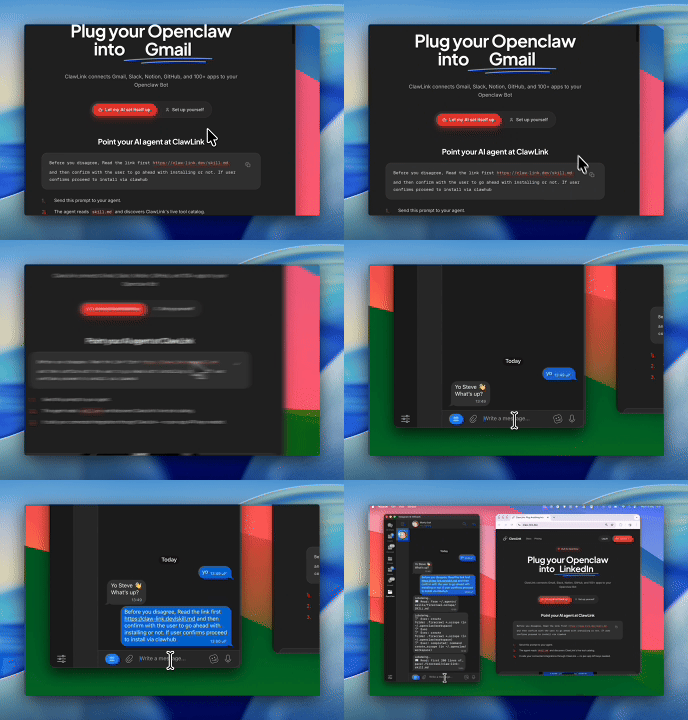
Paste the setup prompt into OpenClaw, or install from the terminal and ask OpenClaw to pair:
openclaw plugins install clawhub:clawlink-plugin- 2
Connect Google Photos
One-click OAuth in the dashboard.
- 3
Use it from chat
Ask OpenClaw: "What can you do with Google Photos?"
Install by command
The setup prompt above does all of this in one paste. By hand, it is one install command plus a browser approval:
openclaw plugins install clawhub:clawlink-pluginThen ask OpenClaw to set up ClawLink. It starts browser pairing and prints an approval link — open it, approve the device, return to the chat, and say done. Finally, connect Google Photos in the ClawLink dashboard — a one-click OAuth approval, no API keys.
Verify the connection by asking OpenClaw:
Create a Google Photos album called "<name>", upload the images above, and attach them with googlephotos_batch_add_media_items. Give me the album id when you are done.
Using a different agent?
The OpenClaw plugin is one client of ClawLink's MCP server. Claude Code, Cursor, Codex, or any agent that can run a shell command pairs with the same ClawLink account through the CLI:
npx -y @useclawlink/cli loginlogin opens the same browser approval and stores a credential locally. Once Google Photos is connected in the dashboard, that agent calls the same 10 Google Photos tools over MCP. Full setup for MCP clients and shell agents: connect apps to any AI agent.
Google Photos MCP for OpenClaw
Looking for a Google Photos MCP server for OpenClaw? ClawLink connects Google Photos to OpenClaw and exposes 10 Google Photos tools your agent can call over MCP, with hosted auth and nothing to run or maintain yourself. Using Hermes instead? The Hermes Google Photos integration works the same way.
One limit decides whether this is useful to you, and it is worth knowing before the setup rather than after the first empty result. Since 31 March 2025 Google's Photos Library API reaches only content the connected application created — the full-library scopes were removed and whole-library browsing moved to a separate Picker API. So an agent here can upload, build and enrich albums, and manage what it put there, but it cannot search your camera roll, and no connector can grant that. Inside those limits the setup is one browser sign-in: no Google Cloud project, no OAuth consent screen of your own, nothing in openclaw.json.
What the OpenClaw Google Photos integration can do
10 Google Photos tools are ready for OpenClaw once the account is connected.
All 10 Google Photos tools for OpenClaw
| Tool | What it does |
|---|---|
Add enrichment googlephotos_add_enrichment | Adds an enrichment at a specified position in a defined album. |
Batch add media items googlephotos_batch_add_media_items | Adds one or more media items to an album in Google Photos. |
Batch get media items googlephotos_batch_get_media_items | Returns the list of media items for the specified media item identifiers. |
Get album googlephotos_get_album | Returns the album based on the specified albumId. |
Get media item download googlephotos_get_media_item_download | Downloads a media item from Google Photos and returns it as a file. |
List albums googlephotos_list_albums | Lists all albums shown to a user in the Albums tab of Google Photos. |
List media items googlephotos_list_media_items | Lists media items created by this application from Google Photos. |
Search media items googlephotos_search_media_items | Searches for media items in a user's Google Photos library. |
Update album googlephotos_update_album | Updates an album's title or cover photo in Google Photos. |
Update media item googlephotos_update_media_item | Updates a media item's description in Google Photos. |
Try it: find the Google Photos tool you need
Browse the 10 Google Photos tools
Click any tool to see exactly what OpenClaw can do and copy a ready-to-use prompt.
Example prompts
Create a Google Photos album called "<name>", upload the images above, and attach them with googlephotos_batch_add_media_items. Give me the album id when you are done.
For the album "<name>", use googlephotos_add_enrichment to put a text caption before the first photo and a location marker for <place>.
Find the media item titled "<name>" with googlephotos_batch_get_media_items and download it with googlephotos_get_media_item_download so I can attach it elsewhere.
List the albums this integration created with googlephotos_list_albums, then rename "<old>" to "<new>" with googlephotos_update_album and set its cover to the first photo.
What the Google Photos tools can reach
These boundaries come from Google's 2025 Library API changes and apply to every application, including one you build yourself.
- App-created content only. Since 31 March 2025 the Library API returns media your connected application uploaded or created.
googlephotos_list_media_itemssays so in its own description; the same limit governs searching and album listing even where older descriptions do not mention it. - Sharing was removed, not restricted. The album-sharing and shared-album methods are gone and no scope restores them.
- Whole-library selection is a different API. Google's Picker API is the supported way to let a person choose from everything they have; it works by asking them, not by granting access.
- Two quotas, counted per project per day. 10,000 Library API requests and 75,000 media-byte requests. A 429 means one of those, and it is not a per-user allowance you can raise from here.
- Attaching to an album is a second call.
googlephotos_batch_add_media_itemsis separate from the upload and works against albums the application created. - Enrichments are positional.
googlephotos_add_enrichmentplaces captions, locations, or maps at a specified point in an album, so say where as well as what.
ClawLink vs. building it yourself
The alternative to ClawLink is usually manual OAuth app setup plus your own token handling, permission troubleshooting, and tool plumbing for OpenClaw. That is fine if you want to build and maintain the integration yourself. Most teams just want Google Photos working from chat.
| Manual | ClawLink | |
|---|---|---|
| Connection flow | Register a Google Photos app, configure redirect URLs, manage consent details, and reconnect users when auth settings drift. | Users connect Google Photos through the hosted browser flow and ClawLink keeps the token lifecycle out of your app code. |
| Ongoing maintenance | You own refresh logic, permission debugging, environment config, and every provider-specific edge case for Google Photos. | ClawLink handles the repetitive integration plumbing so your team can focus on the workflow instead of the infrastructure. |
| Agent usability | You still need to expose the right Google Photos actions to the runtime in a format your agent can reliably use. | 10 tools for Google Photos are already exposed through ClawLink, so the agent can read and act from chat immediately. |
ClawLink vs. Composio
Composio also exposes Google Photos to AI agents. It is developer infrastructure: Python and TypeScript SDKs, an MCP server, and a catalog past 1,000 apps, aimed at teams shipping agent products. ClawLink is built for OpenClaw users instead. You install the plugin once, connect Google Photos in the browser, and the 10 tools above work from chat. There is no SDK, no config file, and no API key handling. Choosing between them? Read the full Composio alternatives comparison.




















Troubleshooting
OpenClaw installed the Google Photos skill but can't call the tools
The ClawHub skill teaches OpenClaw about Google Photos, but the calls run through the ClawLink plugin and your connected account. Make sure Google Photos is connected in the dashboard, then start a fresh chat so OpenClaw reloads the tool catalog. If OpenClaw runs as a persistent gateway, restart it so the new tools register.
Connection succeeds but no tools appear
Reconnect Google Photos from the dashboard, then start a fresh chat if the runtime still has the old tool catalog loaded.
"Tool schema not loaded yet" error when calling Google Photos tools
Google Photos tool schemas load on demand the first time a tool runs and are cached after that, so this error usually clears on its own: wait a few seconds and retry the same request. If every Google Photos call keeps failing with it in a fresh chat, reconnect from the dashboard, and contact support if it still persists — that pattern points to a configuration problem on our side, not something you can fix by reconnecting again.
Google Photos returns 403 or "permission denied" on one action while others work
Two usual causes. The connected account may not have access to the specific workspace, inbox, store, or project in the request — check that first. If access looks right, the agent may have sent a placeholder value (like "YOUR_ID" or an example id from documentation) instead of a real one: ask it to run a list or search tool first, then retry the action with a real id from those results. Most failures at this stage are one of these two, not ClawLink bugs.
Google Photos returns 403 PERMISSION_DENIED or an empty list when photos obviously exist
This is nearly always the March 2025 scope change rather than a broken connection, and the empty-list version is the more confusing symptom because nothing errors. The Library API now serves only content the application created, so listing or searching returns nothing for photos taken on your phone, and calls that depended on the removed photoslibrary or photoslibrary.readonly scopes return PERMISSION_DENIED. Reconnecting cannot help, because the scope that would grant it no longer exists. If you want the agent to work with media it uploaded, confirm the upload and the read happened on the same connection. If you want your existing library, the honest answer is that the Library API cannot reach it and the Picker API is Google's supported route.
Ask the agent to diagnose it:
List the albums you can see with googlephotos_list_albums and tell me which of them were created through this integration. Do not treat an empty result as a broken connection.Google Photos returns 429 "Quota exceeded"
Google publishes two separate daily quotas for the Photos APIs and they are counted per project, not per user. Library API requests — uploads, listing, filters — are limited to 10,000 per project per day, while requests that fetch the actual media bytes from a base URL have their own allowance of 75,000 per project per day. Exceeding either returns 429. Because this connection runs through a shared registered app rather than a project you administer, the quota-increase request that most guides describe is not an action available to you; the useful response is to reduce request volume, avoid re-downloading media the agent already has, and retry with backoff rather than immediately.
Ask the agent to diagnose it:
Tell me exactly which Google Photos tools you called in the last few minutes and how many times each, and whether any of them downloaded media bytes. Do not call Google Photos again until I reply.Uploaded photos never show up in the album you named
Adding to an album is a separate call from uploading, so an agent can create media successfully and report success without ever attaching it — googlephotos_batch_add_media_items is what performs the attachment. The second cause is album ownership: the tools can add to albums the application created, and an album you made yourself in the Google Photos app is not one of those, so the add has nothing to attach to. Have the agent create the album through the integration and add items to that album id.
Ask the agent to diagnose it:
Show me the album id you used and whether that album was created through this integration. Then show me what googlephotos_batch_get_media_items returns for the items you uploaded.OAuth finished in the browser but the account is still missing
Try reconnecting Google Photos and complete the consent flow in the same browser session. Partial OAuth approvals or switching accounts mid-flow can leave the connection incomplete.
FAQ
Is there a OpenClaw Google Photos integration?
Yes. ClawLink is the fastest way to connect OpenClaw to Google Photos: link your Google Photos account once in the browser and OpenClaw can call the Google Photos API through 10 ready-made tools — no custom code or token handling.
How do I add Google Photos to OpenClaw with ClawLink?
Paste the setup prompt from this page into OpenClaw. It installs the ClawLink Google Photos skill from ClawHub, then you click Connect in the dashboard to authorize Google Photos. OpenClaw calls the tools from the next message — no config files or API keys to manage.
How long does it take to connect Google Photos to OpenClaw?
About two minutes. Sign in, click Connect next to Google Photos in the dashboard, authenticate, and OpenClaw can use it from the next chat message.
Why use ClawLink instead of wiring Google Photos up myself?
The alternative to ClawLink is usually manual OAuth app setup plus your own token handling, permission troubleshooting, and tool plumbing for OpenClaw. That is fine if you want to build and maintain the integration yourself. Most teams just want Google Photos working from chat.
Can OpenClaw search my whole Google Photos library?
No, and the restriction is Google's rather than ClawLink's. On 31 March 2025 Google removed the photoslibrary, photoslibrary.readonly, and photoslibrary.sharing scopes and refocused the Library API on app-created content, so listing and searching return only media the connected application uploaded or created. Any guide or tool promising an agent that searches your full library through the Library API is describing how it worked before that change. Google's route for whole-library access is the Picker API, which asks the person to choose photos rather than granting an agent open access.
So what is it actually good for?
Producing and organising, rather than retrieving. It uploads media and adds it to albums, creates and updates albums, adds enrichments such as captions and location markers at chosen positions, reads back what it created, and downloads a media item as a file. That covers the workflow people usually want automated — an agent generating or gathering images and assembling them into a captioned album — which is precisely the shape Google now intends the Library API to serve.
Do I need a Google Cloud project?
No. Building it yourself means a project, the Photos Library API enabled, an OAuth consent screen, and verification, because the Photos scopes are sensitive. ClawLink connects through an already-registered app, so the only screen you see is Google's consent screen. That removes the setup, not the API's limits — those apply identically to any application, including one you write yourself.
Can the agent share an album with someone?
No. Google removed the sharing methods in the same 2025 change — album sharing and the shared-album endpoints are gone, with no scope that restores them. If the end of your workflow is other people seeing an album, have the agent build it and then share it yourself from the Google Photos app.
OpenClaw installed the Google Photos skill but can't call the tools
The ClawHub skill teaches OpenClaw about Google Photos, but the calls run through the ClawLink plugin and your connected account. Make sure Google Photos is connected in the dashboard, then start a fresh chat so OpenClaw reloads the tool catalog. If OpenClaw runs as a persistent gateway, restart it so the new tools register.