How to connect Hub Planner to OpenClaw
Connect Hub Planner to OpenClaw with ClawLink: paste your Hub Planner key once and 122 tools work from chat. No MCP server to run, nothing stored on your machine.

 Hub PlannerAPI KEYMCP
A Modern and Smart Resource Management, Planning & Scheduling tool with Time Sheets and Powerful Reporting.. Once connected, OpenClaw can read and act on Hub Planner from chat — pairing, token refresh, and tool wiring handled for you.
The usual route to Hub Planner access for OpenClaw is an MCP server you configure and keep running, plus your own OAuth app or API keys. ClawLink gives OpenClaw a more practical Hub Planner setup: install one ClawHub skill, connect Hub Planner in the browser, and OpenClaw can call real Hub Planner actions from any chat surface with no auth, token refresh, or tool wiring to build yourself.
Copy this prompt into OpenClaw, or open the Hub Planner skill on ClawHub.
Before installing anything, inspect the ClawHub skill metadata and setup requirements.
If the skill asks you to install a third-party package or CLI, verify its source, maintainer, and package contents before running the install command.
Install the skill "Hub Planner" (hith3sh/hub-planner-workspace) from ClawHub only after those checks pass.
Skill page: https://clawhub.ai/hith3sh/hub-planner-workspace
Keep the work scoped to this skill only.
After install, help me finish setup from verified skill metadata.
Use only the metadata you can verify from ClawHub; do not invent missing requirements.
Ask before making any broader environment changes.
Setup
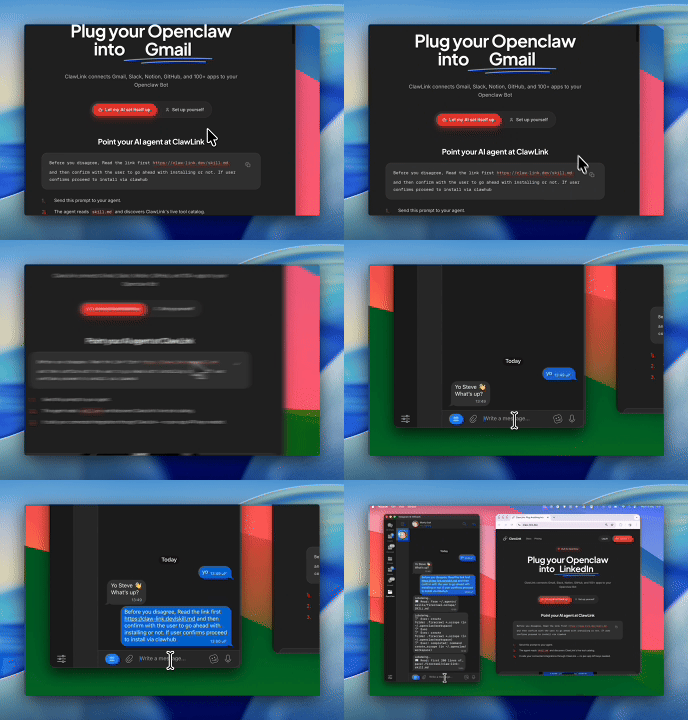
It takes three steps to connect OpenClaw to Hub Planner.
 1
1Install the plugin
Paste the setup prompt into OpenClaw, or install from the terminal and ask OpenClaw to pair:
openclaw plugins install clawhub:clawlink-plugin- 2
Connect Hub Planner
Paste your API key in the dashboard.
- 3
Use it from chat
Ask OpenClaw: "What can you do with Hub Planner?"
Install by command
The setup prompt above does all of this in one paste. By hand, it is one install command plus a browser approval:
openclaw plugins install clawhub:clawlink-pluginThen ask OpenClaw to set up ClawLink. It starts browser pairing and prints an approval link — open it, approve the device, return to the chat, and say done. Finally, connect Hub Planner in the ClawLink dashboard — paste your Hub Planner API key once.
Verify the connection by asking OpenClaw:
Use Hub Planner to add clients to project and walk me through the result in plain English.
Using a different agent?
The OpenClaw plugin is one client of ClawLink's MCP server. Claude Code, Cursor, Codex, or any agent that can run a shell command pairs with the same ClawLink account through the CLI:
npx -y @useclawlink/cli loginlogin opens the same browser approval and stores a credential locally. Once Hub Planner is connected in the dashboard, that agent calls the same 122 Hub Planner tools over MCP. Full setup for MCP clients and shell agents: connect apps to any AI agent.
Hub Planner MCP for OpenClaw
Looking for a Hub Planner MCP server for OpenClaw? ClawLink connects Hub Planner to OpenClaw and exposes 122 Hub Planner tools your agent can call over MCP, with hosted auth and nothing to run or maintain yourself. Using Hermes instead? The Hermes Hub Planner integration works the same way.
What the OpenClaw Hub Planner integration can do
122 Hub Planner tools are ready for OpenClaw once the account is connected. The 30 below are the ones people reach for most; your agent can call all 122.
30 of 122 Hub Planner tools for OpenClaw
| Tool | What it does |
|---|---|
Add clients to project hub_planner_add_clients_to_project | Add clients to a project by project ID |
Add project custom field choices hub_planner_add_project_custom_field_choices | Add choices to a project custom field template of SELECT, RADIO, or CHECKBOX type |
Add project tags hub_planner_add_project_tags | Add tags to a Hub Planner project |
Add projects to group hub_planner_add_projects_to_group | Add projects to a project group in Hub Planner |
Get billing rate hub_planner_get_billing_rate | Retrieve a specific billing rate by ID from Hub Planner |
Get booking hub_planner_get_booking | Retrieve a specific booking by ID from Hub Planner |
Get booking category hub_planner_get_booking_category | Retrieve a specific booking category by ID from Hub Planner |
Get client hub_planner_get_client | Retrieve a specific client by ID from Hub Planner |
Get cost category hub_planner_get_cost_category | Retrieve a specific project cost category by ID from Hub Planner |
Get event hub_planner_get_event | Retrieve a specific event by ID from Hub Planner |
Get holiday hub_planner_get_holiday | Retrieve a specific holiday by ID from Hub Planner |
Get milestone hub_planner_get_milestone | Retrieve a specific milestone by ID from Hub Planner |
Get project hub_planner_get_project | Retrieve a specific project by ID from Hub Planner |
Get project custom field template hub_planner_get_project_custom_field_template | Retrieve a specific project custom field template by ID |
Get project custom field templates hub_planner_get_project_custom_field_templates | Retrieve all project custom field templates defined for your Hub Planner account |
Get project group hub_planner_get_project_group | Retrieve a specific project group by ID from Hub Planner |
Get project tags hub_planner_get_project_tags | Retrieve all tags associated with a specific Hub Planner project |
Get resource hub_planner_get_resource | Retrieve a specific resource by ID from Hub Planner |
Get resource custom field template hub_planner_get_resource_custom_field_template | Retrieve a specific resource custom field template by ID from Hub Planner |
Get resource custom field templates hub_planner_get_resource_custom_field_templates | Retrieve custom field templates defined for resources in your Hub Planner account |
Get resource tags hub_planner_get_resource_tags | Retrieve all tags associated with a specific resource from Hub Planner |
Get time entry hub_planner_get_time_entry | Retrieve a specific time entry by ID from Hub Planner |
Get vacation hub_planner_get_vacation | Retrieve a specific vacation by ID from Hub Planner |
List billing rates hub_planner_list_billing_rates | Retrieve all billing rates from Hub Planner |
List booking categories hub_planner_list_booking_categories | Retrieve all booking categories from Hub Planner |
List bookings hub_planner_list_bookings | Retrieve all bookings from Hub Planner with pagination support |
List category groups hub_planner_list_category_groups | Get all category groups from Hub Planner |
List clients hub_planner_list_clients | Get all clients from Hub Planner |
List cost categories hub_planner_list_cost_categories | Retrieve all project cost categories from Hub Planner |
List events hub_planner_list_events | Retrieve all events from Hub Planner |
Try it: find the Hub Planner tool you need
Browse the 30 Hub Planner tools
Click any tool to see exactly what OpenClaw can do and copy a ready-to-use prompt.
Example prompts
Use Hub Planner to add clients to project and walk me through the result in plain English.
Use Hub Planner to add project custom field choices and walk me through the result in plain English.
Use Hub Planner to add projects to group and walk me through the result in plain English.
ClawLink vs. building it yourself
The alternative to ClawLink is usually manual API key setup plus your own token handling, permission troubleshooting, and tool plumbing for OpenClaw. That is fine if you want to build and maintain the integration yourself. Most teams just want Hub Planner working from chat.
| Manual | ClawLink | |
|---|---|---|
| Credential handling | Collect, validate, store, and rotate the Hub Planner API key yourself, then make sure every tool call uses the right account. | Users complete the hosted ClawLink setup once and the connected Hub Planner account becomes available to the agent without you building credential management. |
| Ongoing maintenance | You own refresh logic, permission debugging, environment config, and every provider-specific edge case for Hub Planner. | ClawLink handles the repetitive integration plumbing so your team can focus on the workflow instead of the infrastructure. |
| Agent usability | You still need to expose the right Hub Planner actions to the runtime in a format your agent can reliably use. | 122 tools for Hub Planner are already exposed through ClawLink, so the agent can read and act from chat immediately. |
ClawLink vs. Composio
Composio also exposes Hub Planner to AI agents. It is developer infrastructure: Python and TypeScript SDKs, an MCP server, and a catalog past 1,000 apps, aimed at teams shipping agent products. ClawLink is built for OpenClaw users instead. You install the plugin once, connect Hub Planner in the browser, and the 122 tools above work from chat. There is no SDK and no config file, and the Hub Planner key you paste at setup is stored server-side rather than kept in your environment. Choosing between them? Read the full Composio alternatives comparison.





















Troubleshooting
OpenClaw installed the Hub Planner skill but can't call the tools
The ClawHub skill teaches OpenClaw about Hub Planner, but the calls run through the ClawLink plugin and your connected account. Make sure Hub Planner is connected in the dashboard, then start a fresh chat so OpenClaw reloads the tool catalog. If OpenClaw runs as a persistent gateway, restart it so the new tools register.
Connection succeeds but no tools appear
Reconnect Hub Planner from the dashboard, then start a fresh chat if the runtime still has the old tool catalog loaded.
"Tool schema not loaded yet" error when calling Hub Planner tools
Hub Planner tool schemas load on demand the first time a tool runs and are cached after that, so this error usually clears on its own: wait a few seconds and retry the same request. If every Hub Planner call keeps failing with it in a fresh chat, reconnect from the dashboard, and contact support if it still persists — that pattern points to a configuration problem on our side, not something you can fix by reconnecting again.
Hub Planner returns 403 or "permission denied" on one action while others work
Two usual causes. The connected account may not have access to the specific workspace, inbox, store, or project in the request — check that first. If access looks right, the agent may have sent a placeholder value (like "YOUR_ID" or an example id from documentation) instead of a real one: ask it to run a list or search tool first, then retry the action with a real id from those results. Most failures at this stage are one of these two, not ClawLink bugs.
API key setup works but results look incomplete
Double-check that the API key for Hub Planner has the right scopes or account access. A valid key can still be too limited for some reads or writes.
FAQ
Is there a OpenClaw Hub Planner integration?
Yes. ClawLink is the fastest way to connect OpenClaw to Hub Planner: link your Hub Planner account once in the browser and OpenClaw can call the Hub Planner API through 122 ready-made tools — no custom code or token handling.
How do I add Hub Planner to OpenClaw with ClawLink?
Paste the setup prompt from this page into OpenClaw. It installs the ClawLink Hub Planner skill from ClawHub, then you click Connect in the dashboard to authorize Hub Planner. OpenClaw calls the tools from the next message — no config files, and the Hub Planner key you paste is stored server-side instead of in your environment.
How long does it take to connect Hub Planner to OpenClaw?
About two minutes. Sign in, click Connect next to Hub Planner in the dashboard, authenticate, and OpenClaw can use it from the next chat message.
Why use ClawLink instead of wiring Hub Planner up myself?
The alternative to ClawLink is usually manual API key setup plus your own token handling, permission troubleshooting, and tool plumbing for OpenClaw. That is fine if you want to build and maintain the integration yourself. Most teams just want Hub Planner working from chat.
OpenClaw installed the Hub Planner skill but can't call the tools
The ClawHub skill teaches OpenClaw about Hub Planner, but the calls run through the ClawLink plugin and your connected account. Make sure Hub Planner is connected in the dashboard, then start a fresh chat so OpenClaw reloads the tool catalog. If OpenClaw runs as a persistent gateway, restart it so the new tools register.